Assign PIM Eligible Admin Roles Using Entra ID Admin Center
Microsoft Entra Privileged Identity Management (PIM) is one of the most important security features available for controlling administrative access in Microsoft 365.
Instead of assigning permanent admin roles to users, PIM allows you to make role assignments eligible, meaning users can activate the role only when required — and only for a limited duration.
In this article, we will explore what PIM eligible admin roles are, why they matter, and how to assign them using both the Entra Admin Center and Microsoft Graph PowerShell.
What are Entra ID PIM Eligible Admin Roles?
In Microsoft Entra ID, administrative roles such as:
- Global Administrator
- Exchange Administrator
- Security Administrator
- Teams Administrator
provide powerful access across your tenant.
With Privileged Identity Management (PIM), you can assign these roles in two ways:
- Active Assignment – User gets active role right away (which may be temporary or permanent)
- Eligible Assignment – User can activate the role only when needed
A PIM Eligible Admin Role : means
- The user does not have standing admin access
- The role is available for activation temporarily
- Activation can require approval, MFA, justification, and auditing
In simple terms:
Eligible roles reduce permanent privilege and enforce “just-in-time” administration.
Why use Entra ID PIM Eligible Admin Roles?
Assigning admin roles permanently increases security risks. PIM eligible roles solve this problem by introducing control and accountability.
Here are the key benefits:
- Reduced Security Risk
Permanent Global Admin access is one of the biggest attack targets. Eligible assignments ensure admin privileges are available only when required.
- Just-in-Time Privileged Access
Users activate the role only for a specific duration, such as:
- 1 hour
- 8 hours
- 1 day
This limits exposure.
- Stronger Governance
PIM supports:
- MFA enforcement
- Approval workflows
- Justification requirement
- Audit logging
- Better Compliance
Eligible role assignments help organizations meet compliance standards like:
- ISO 27001
- SOC
- GDPR
- Microsoft Security Best Practices
- Complete Audit Trail
Every activation request and role usage is logged, making investigations easier.
How to Create and Assign PIM Eligible Admin Roles?
You can assign PIM eligible roles in two main ways:
- Using the Entra Admin Center (GUI)
- Using Microsoft Graph PowerShell (Automation)
Assign PIM Eligible Roles Using Entra ID Admin Center
Follow these simple steps to assign an eligible admin role through the portal.
Step 1: Open Microsoft Entra Admin Center
Go to:
Sign in with an account that has Privileged Role Administrator or Global Admin permissions.
Step 2: Navigate to Privileged Identity Management
In the left-hand menu:
- Select ID Governance
- Click Privileged Identity Management
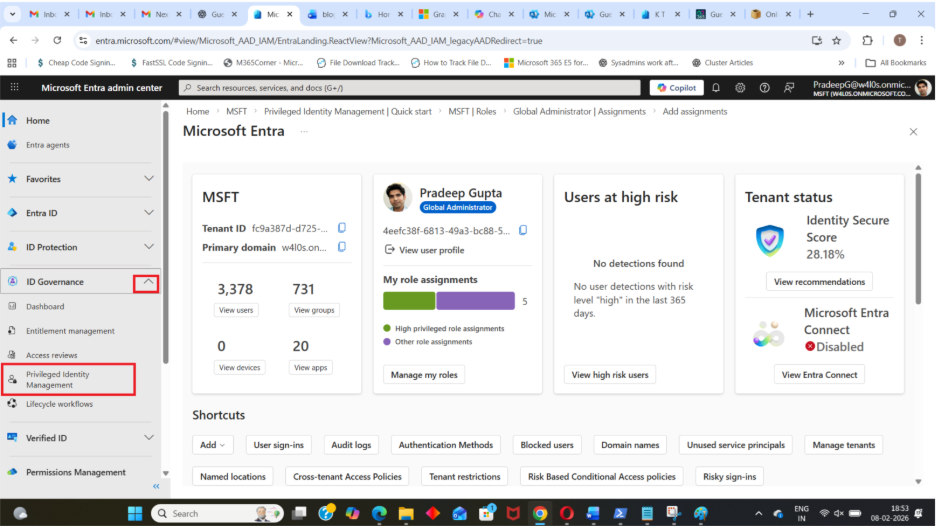
Step 3: Select Entra ID Role
- Select Manage under Manage Access section
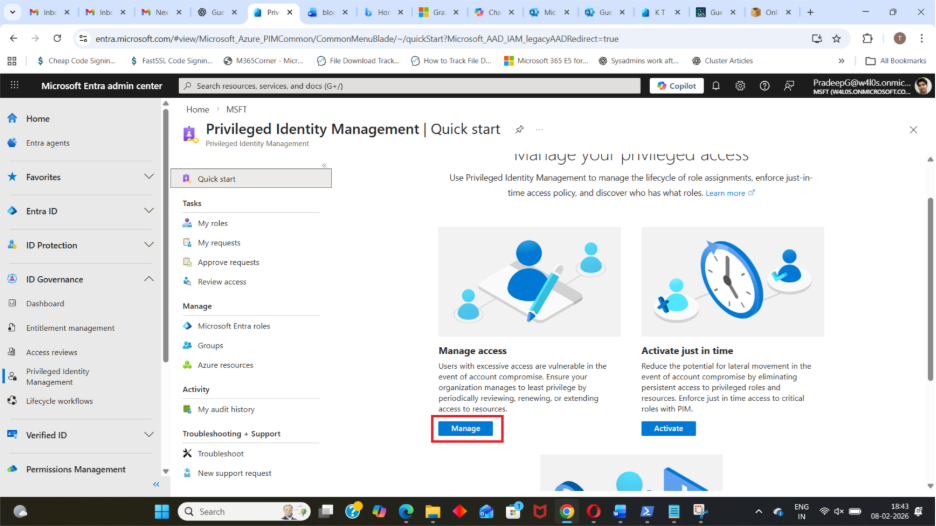
This shows all available administrative roles.
Step 4: Choose the Role to Assign
Click on the role you want to assign, for example:
- Global Administrator
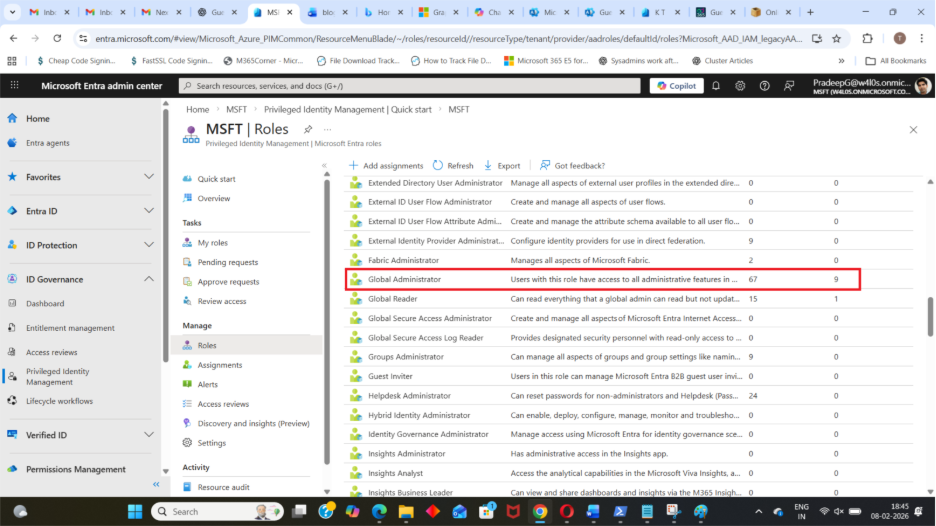
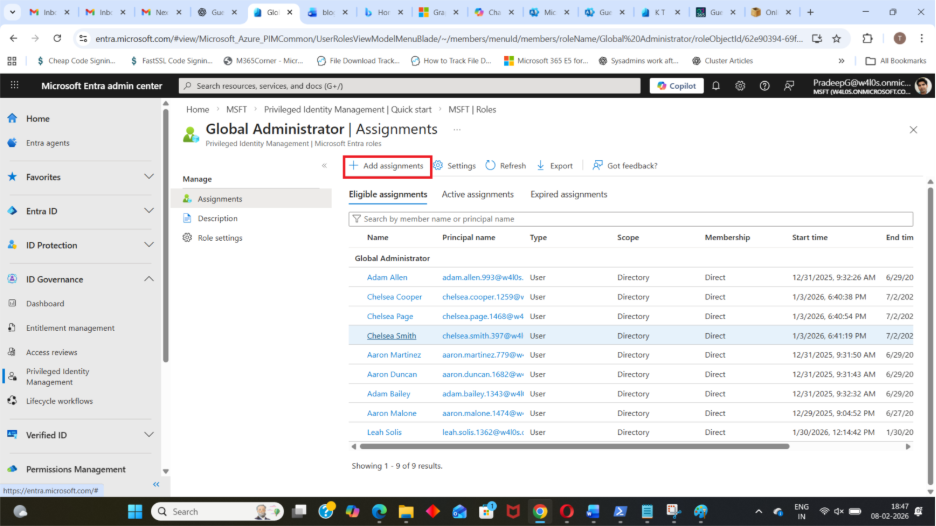
Step 5: Add an Eligible Assignment
Inside the role page:
- Select Add assignments
Step 6: Select the User
Click Select members
- Choose the user who should become eligible for this role
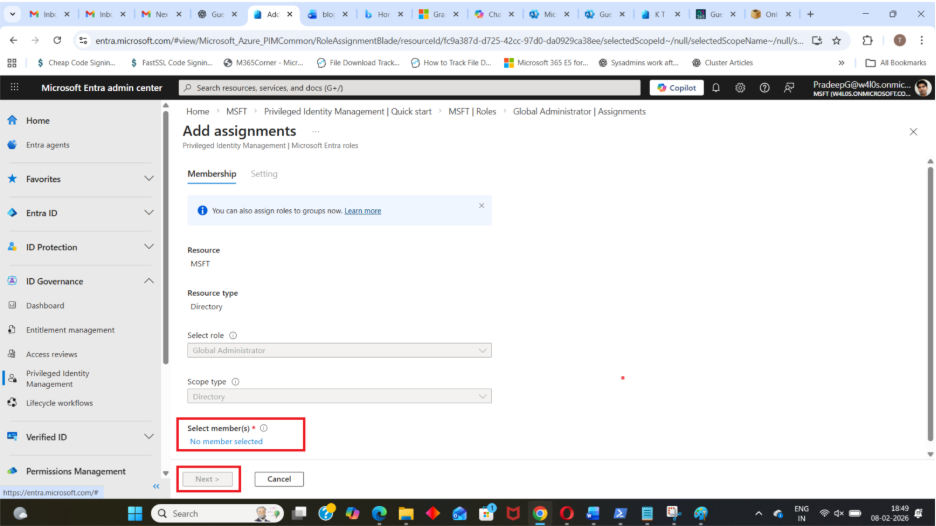
Step 7: Configure Assignment Settings
You can configure:
- Start date, End date (optional) and Assignment duration
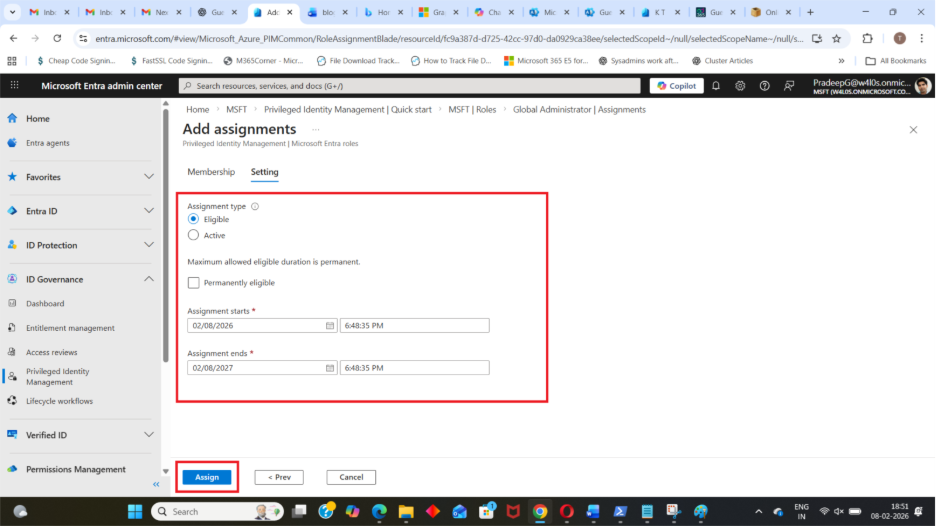
Step 8: Click Assign
The user is now eligible, not permanently active.
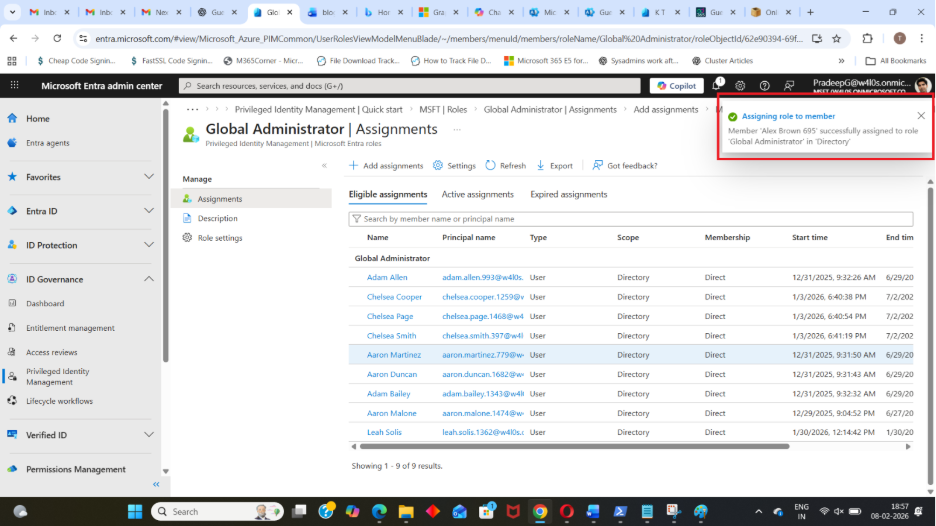
They can activate the role later through accessing Entra ID Admin Center and selecting:
- My roles → Activate
Assign PIM Eligible Roles Using Graph PowerShell
If you want to automate role eligibility assignments, Microsoft Graph PowerShell is the best option.
Below is a brief script example for creating a PIM eligible assignment request.
Create PIM Eligible Assignment (Script)
# ==============================
# CREATE PIM ELIGIBLE ASSIGNMENT
# ==============================
$params = @{
    PrincipalId      = $user.Id
    RoleDefinitionId = $GlobalAdminRoleId
    DirectoryScopeId = "/"
    Action           = "AdminAssign"
    Justification    = $Justification
    ScheduleInfo     = @{
        StartDateTime = (Get-Date).ToUniversalTime()
        Expiration    = @{
            Type     = "AfterDuration"
            Duration = $Duration
        }
    }
}

New-MgRoleManagementDirectoryRoleEligibilityScheduleRequest `
    -BodyParameter $params
This script assigns the selected user as eligible for the specified admin role.
Full Script Available on M365Corner
For the complete step-by-step PowerShell script (including role ID retrieval, user selection, and error handling), refer to the full guide here:
👉 Assign PIM Eligible Global Admin Using Graph PowerShell
https://m365corner.com/m365-powershell/assign-pim-eligible-global-admin-using-graph-powershell.html
Conclusion
Entra ID PIM Eligible Admin Roles are one of the best security controls you can implement in Microsoft 365.
Instead of granting permanent admin access, PIM ensures:
- Just-in-time activation
- Reduced attack surface
- Strong auditing and governance
- Better compliance
Whether you assign roles through the Entra Admin Center or automate them using Graph PowerShell, eligible role assignments are a must-have for every secure tenant.
Did You Know? Managing Microsoft 365 applications is even easier with automation. Try our Graph PowerShell scripts to automate tasks like generating reports, cleaning up inactive Teams, or assigning licenses efficiently.
Ready to get the most out of Microsoft 365 tools? Explore our free Microsoft 365 administration tools to simplify your administrative tasks and boost productivity.