Add Members to Microsoft Teams Using Teams Admin Center
Managing members in Microsoft Teams is a day-to-day task for administrators. Whether you’re onboarding new employees, assigning owners, or managing large teams, knowing the right ways to add members is essential.
In this article, we’ll explore who Microsoft Teams members are and how to add them using:
- Teams Admin Center
- Microsoft 365 Admin Center
- Microsoft Graph PowerShell (for automation and bulk operations)
Who are Microsoft Teams Members?
Microsoft Teams members are users who belong to a specific Team and can collaborate using chats, channels, meetings, and shared files.
There are two primary roles in a Team:
- Owners
- Manage Team settings
- Add or remove members
- Create or delete channels
- Members
- Participate in conversations
- Share files and collaborate
- Create channels (if allowed by policy)
Behind the scenes, every Team is backed by a Microsoft 365 Group, and Team membership is synchronized with the group’s membership.
How to Add Microsoft Teams Members?
Microsoft Teams members can be added in multiple ways, depending on your needs:
- Teams Admin Center – Best for direct Team-based management
- Microsoft 365 Admin Center – Useful when managing group membership
- Microsoft Graph PowerShell – Ideal for automation and bulk operations
Let’s go through each method.
Using Teams Admin Center
The Teams Admin Center allows administrators to add members directly to a specific Team.
Step-by-Step Instructions
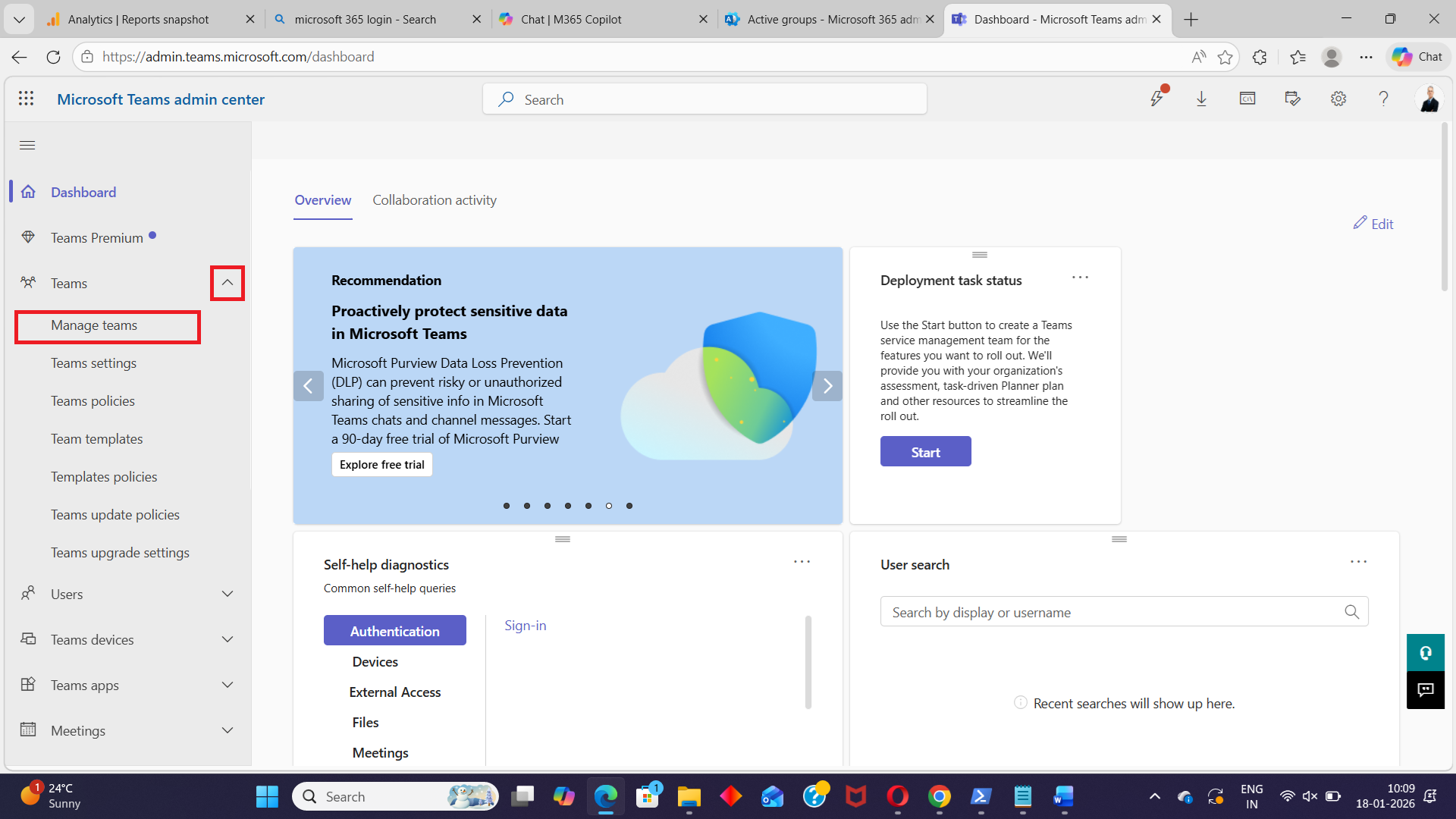
- Sign in to the Teams Admin Center
https://admin.teams.microsoft.com - Go to:
Teams → Manage teams - Search for and select the Team you want to manage
- Open the Members tab
- Click + Add owners and select the team owners.
- Click +Add members to select the team members.
- Click Apply
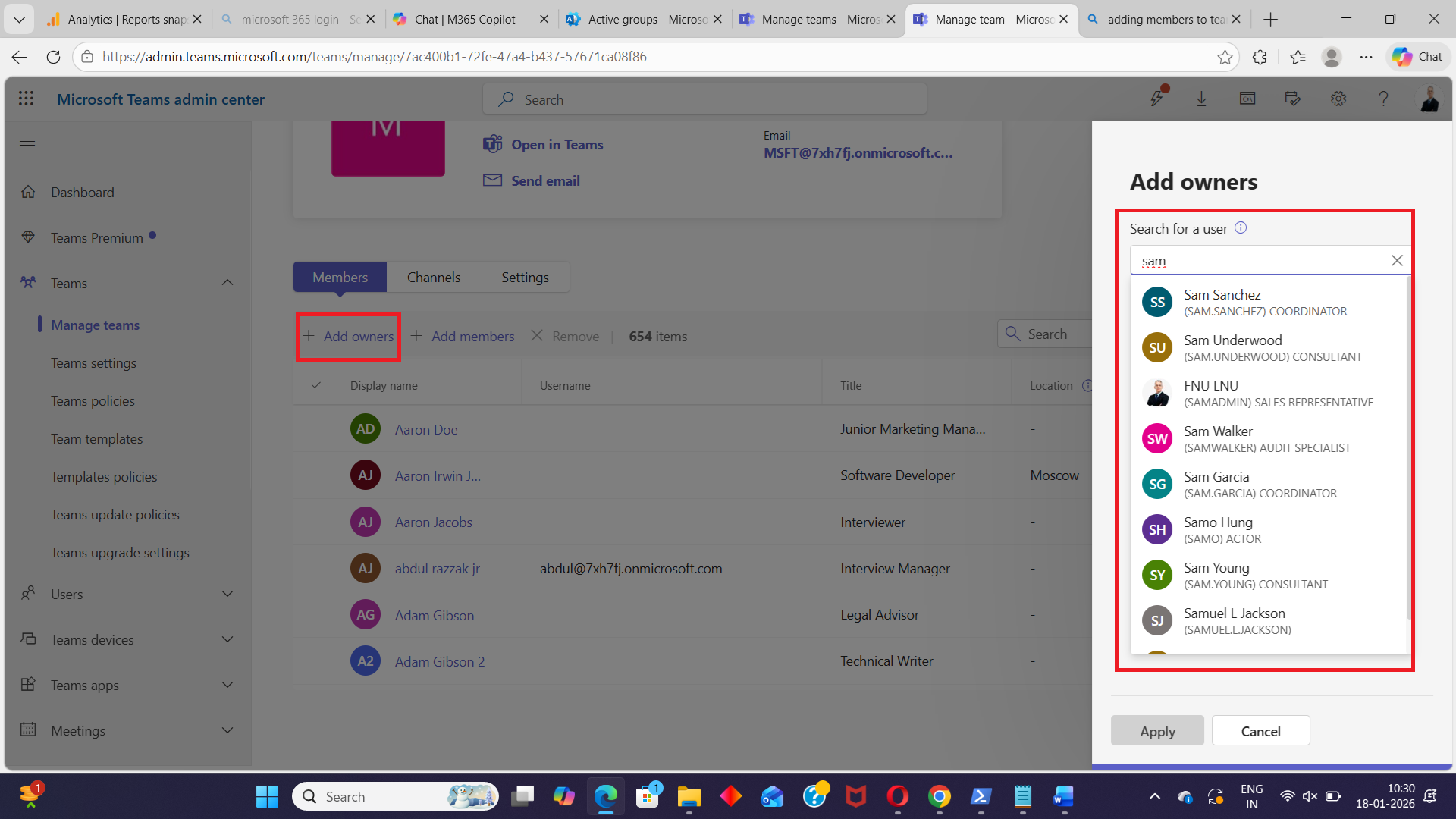
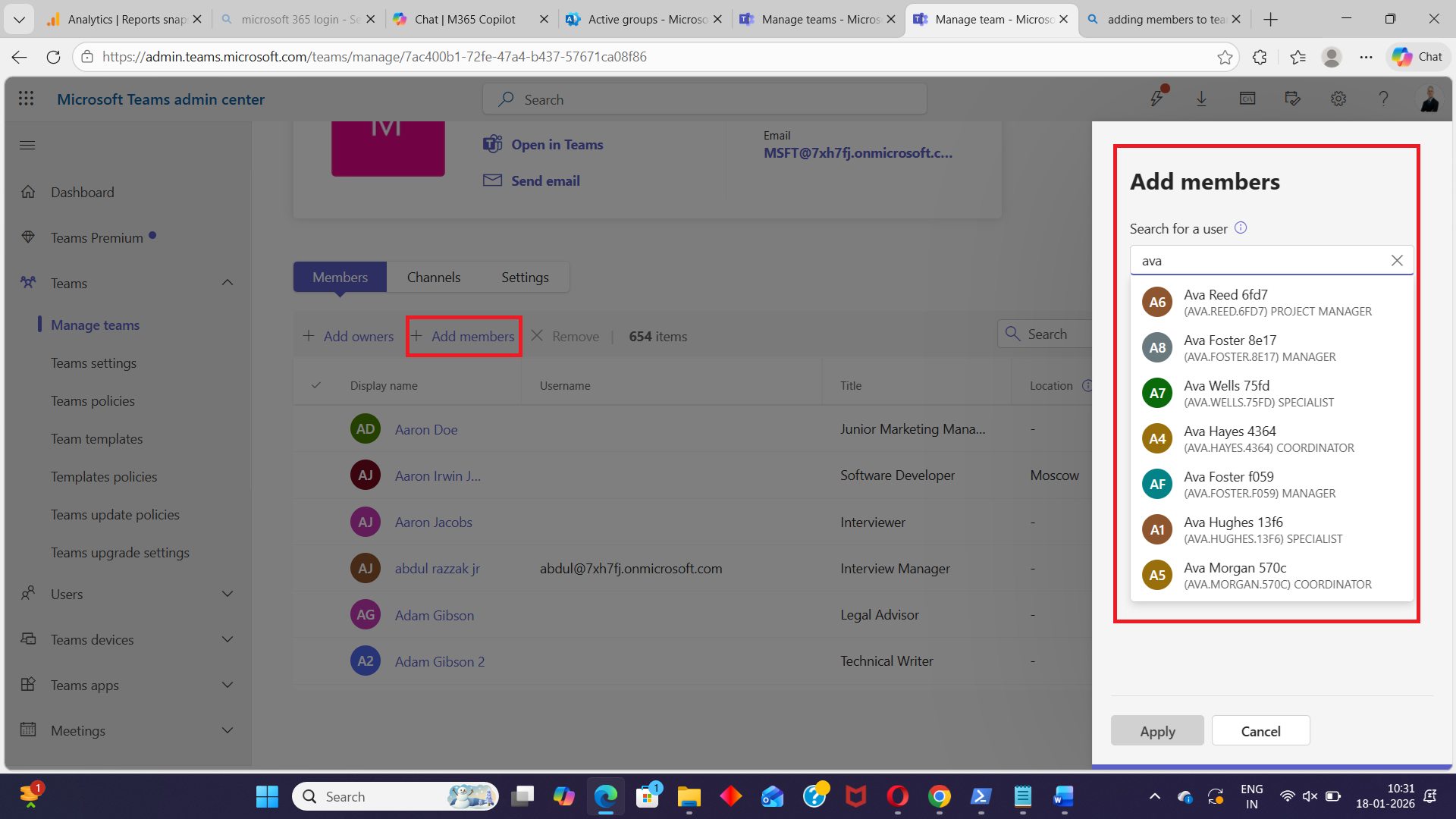
The user is added immediately and gains access to the Team based on their assigned role.
✅ Best for:
- Managing individual Teams
- Assigning owners quickly
- Visual confirmation of Team membership
Using Microsoft 365 Admin Center
Since Microsoft Teams are backed by Microsoft 365 Groups, you can also manage Team members through the Microsoft 365 Admin Center.
Step-by-Step Instructions
- Sign in to the Microsoft 365 Admin Center
https://admin.microsoft.com - Navigate to:
Teams & groups → Active teams & groups - Select the Microsoft 365 Group associated with the Team
- Go to the Members tab
- Click Add members
- Select users to be added as owners and users to be added as members.
- Save your changes
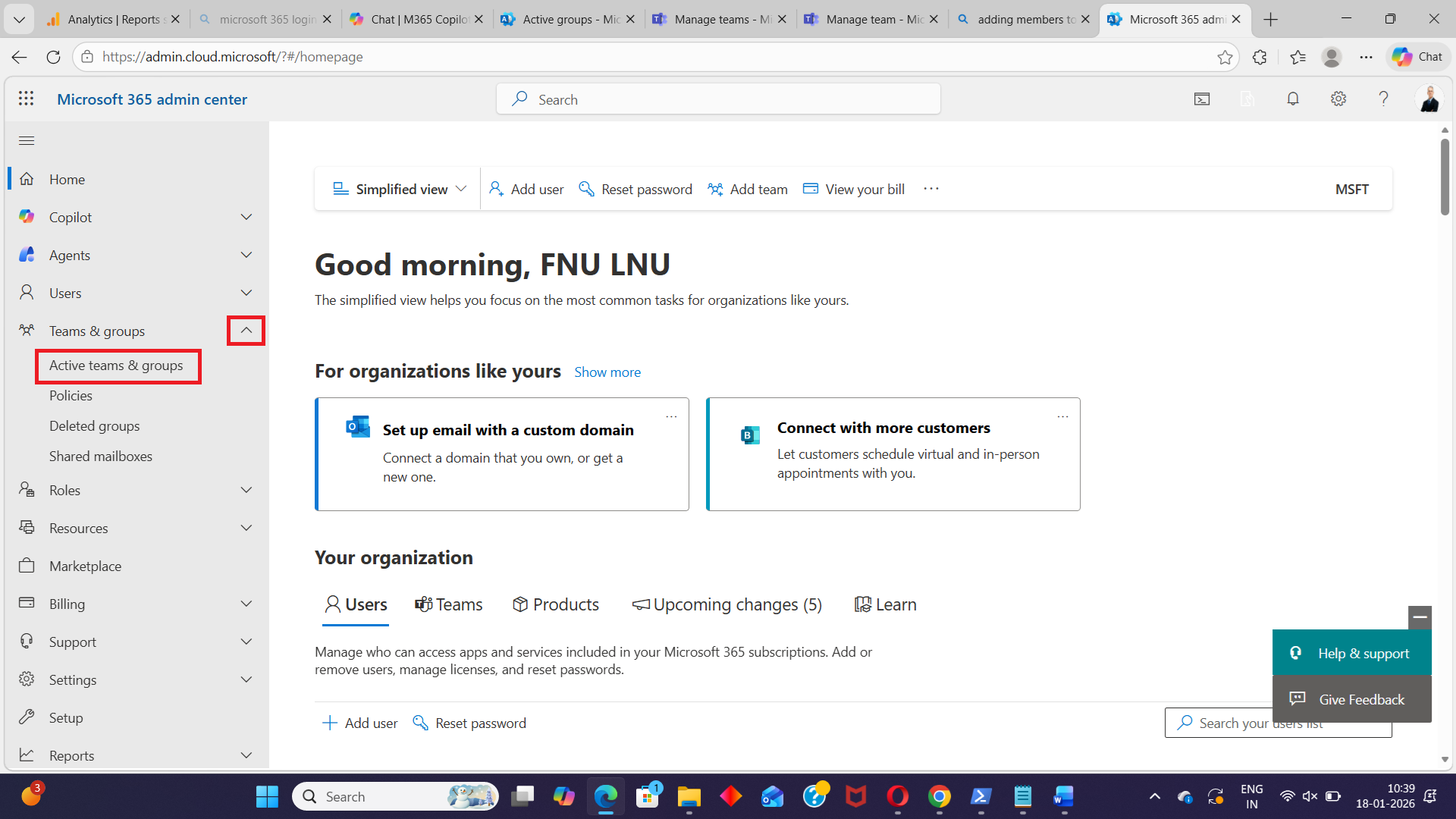
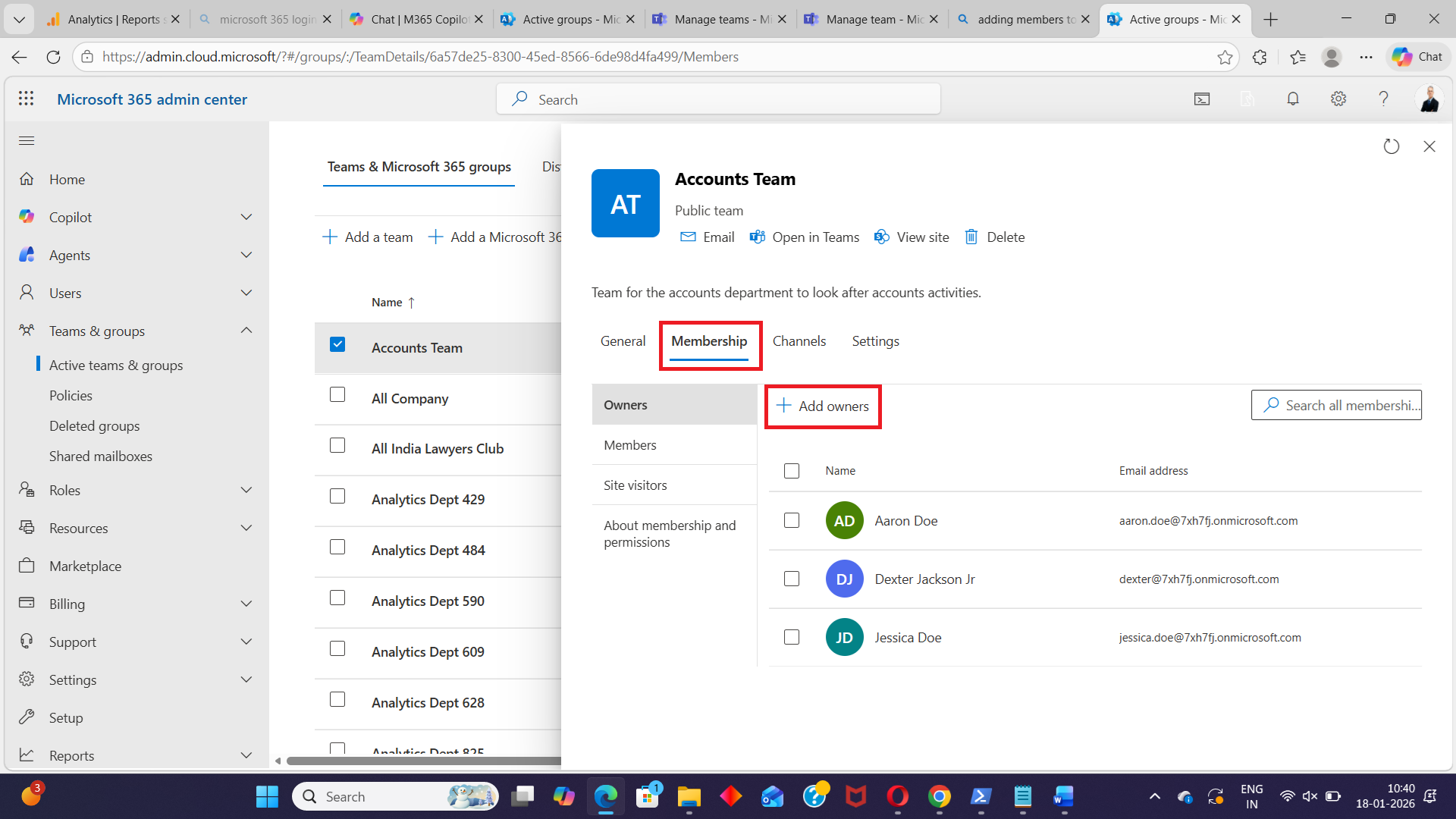
The users are automatically added to the associated Microsoft Team.
✅ Best for:
- Group-centric administration
- Managing membership across M365 services
- Aligning Teams with group governance
⚠️ Note:
Changes here affect all services tied to the group, not just Teams.
Using Microsoft Graph PowerShell
For administrators managing Teams at scale, Microsoft Graph PowerShell provides flexibility, automation, and consistency.
Install Microsoft Graph PowerShell
Install-Module Microsoft.Graph -Scope CurrentUserConnect to Microsoft Graph
Connect-MgGraph -Scopes "TeamMember.ReadWrite.All","Group.ReadWrite.All","User.Read.All"These permissions allow you to read users and manage Team membership.
Usage Examples
Example 1: Adding a Single User to a Team
$teamId = "your-team-id"
$params = @{
    values = @(
        @{
            "@odata.type" = "#microsoft.graph.aadUserConversationMember"
            roles = @()  # No specific role assigned (member by default)
            "user@odata.bind" = "https://graph.microsoft.com/v1.0/users('user-id')"
        }
    )
}

Add-MgTeamMember -TeamId $teamId -BodyParameter $params
✅ Adds a user as a standard member.
Example 2: Adding Multiple Users to a Team
$teamId = "your-team-id"
$params = @{
    values = @(
        @{
            "@odata.type" = "#microsoft.graph.aadUserConversationMember"
            roles = @("owner")  # Assigning user as an owner
            "user@odata.bind" = "https://graph.microsoft.com/v1.0/users('owner-user-id')"
        }
        @{
            "@odata.type" = "#microsoft.graph.aadUserConversationMember"
            roles = @()  # Assigning another user as a member
            "user@odata.bind" = "https://graph.microsoft.com/v1.0/users('member-user-id')"
        }
    )
}

Add-MgTeamMember -TeamId $teamId -BodyParameter $params
✅ Adds multiple users in a single request with different roles.
Example 3: Bulk Addition of Users from a CSV File
When adding many users, CSV-based automation saves time and reduces errors.
Example CSV File
UserId,Role
user1-id,owner
user2-id,member
user3-id,member
PowerShell Script to Add Users in Bulk
$teamId = "your-team-id"
$csv = Import-Csv -Path "C:\Path\To\TeamMembers.csv"
$values = @()

foreach ($row in $csv) {
    $role = if ($row.Role -eq 'owner') { @("owner") } else { @() }
    $values += @{
        "@odata.type" = "#microsoft.graph.aadUserConversationMember"
        roles = $role
        "user@odata.bind" = "https://graph.microsoft.com/v1.0/users('$($row.UserId)')"
    }
}

$params = @{ values = $values }

Add-MgTeamMember -TeamId $teamId -BodyParameter $params
✅ Best for:
- Department onboarding
- Project team setup
- Large-scale administration
Conclusion
Adding members to Microsoft Teams can be done in multiple ways, depending on your environment and scale:
- Teams Admin Center is ideal for quick, Team-focused management
- Microsoft 365 Admin Center works well for group-based administration
- Microsoft Graph PowerShell is the best choice for automation and bulk operations
For organizations managing Teams at scale, Graph PowerShell provides unmatched control and consistency.
Did You Know? Managing Microsoft 365 applications is even easier with automation. Try our Graph PowerShell scripts to automate tasks like generating reports, cleaning up inactive Teams, or assigning licenses efficiently.
Ready to get the most out of Microsoft 365 tools? Explore our free Microsoft 365 administration tools to simplify your administrative tasks and boost productivity.