Activate PIM Eligible Admin Roles Using Entra Admin Center
Microsoft Entra Privileged Identity Management (PIM) helps organizations reduce security risks by enforcing just-in-time privileged access.
Instead of granting permanent administrator permissions, users are made eligible for admin roles and must activate them only when needed.
In this article, you’ll learn what PIM role activation means, why it matters, and how users can activate their eligible admin roles using both the Entra Admin Center and Microsoft Graph PowerShell.
What is PIM Eligible Role Activation?
PIM Eligible Role Activation is the process where a user temporarily enables an administrative role that they are eligible for.
When a user is assigned an eligible role (such as Global Administrator), they do not automatically have admin access. Instead, they must activate the role manually.
Activation provides:
- Temporary role access
- Time-bound permissions
- Justification and auditing
- Optional MFA and approval enforcement
In simple terms:
Eligibility means the role is available. Activation means the role is actually enabled.
Why should users activate their PIM Eligible Roles?
Users must activate their PIM eligible roles because eligibility alone does not provide admin access.
When a role is assigned as eligible, it remains inactive by default. The user cannot perform administrative actions until the role is activated.
Activation is required to:
- Temporarily enable the admin role when needed
- Convert the eligible assignment into an active role session
- Gain the necessary permissions to complete admin tasks
In short:
If a role is eligible, it is available.
If it is activated, it can be used.
Once the required work is done, the role automatically expires after the configured duration.
Activate PIM Eligible Roles Using Entra ID Admin Center
Follow these simple steps to activate your eligible admin role through the portal.
Step 1: Open Microsoft Entra Admin Center
Go to:
Sign in with your Entra ID user account.
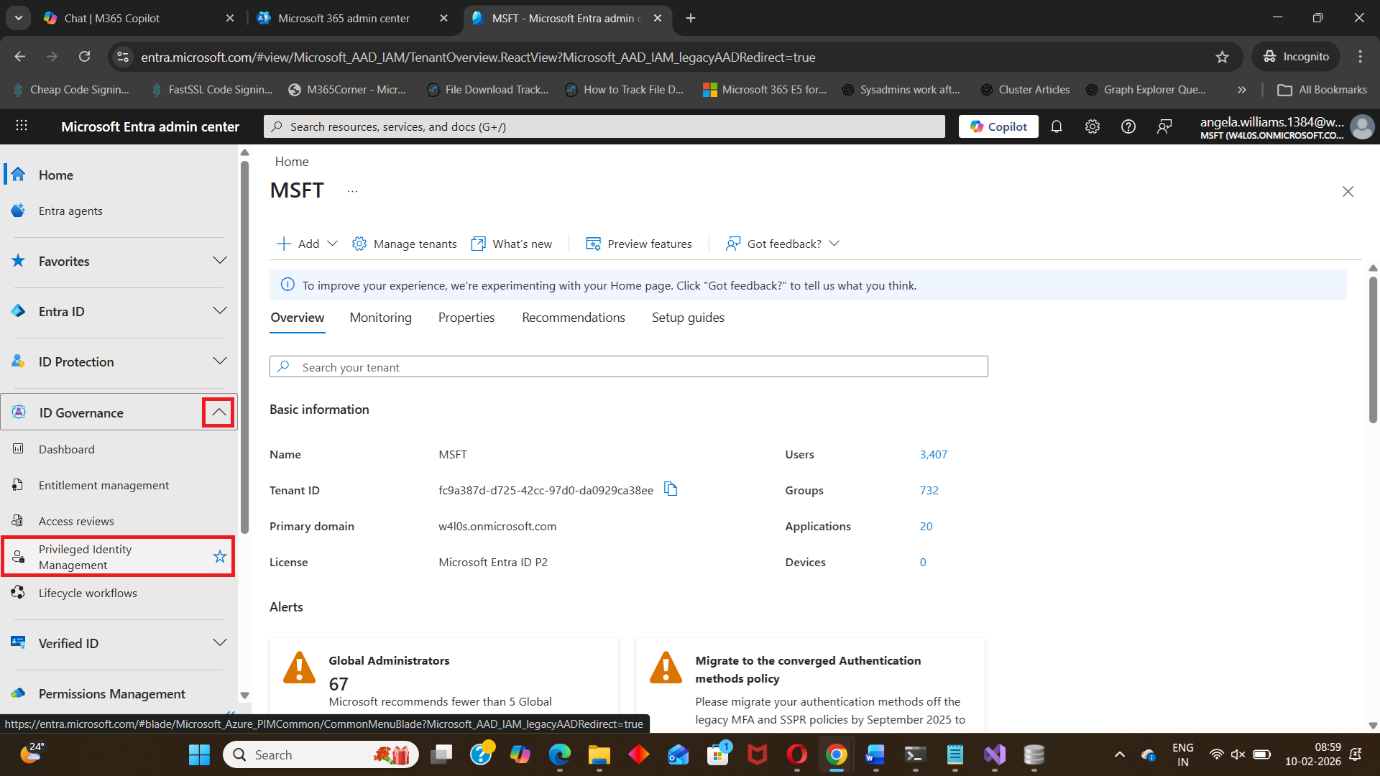
Step 2: Navigate to Privileged Identity Management
From the left-hand menu:
- Select Identity Governance
- Click Privileged Identity Management
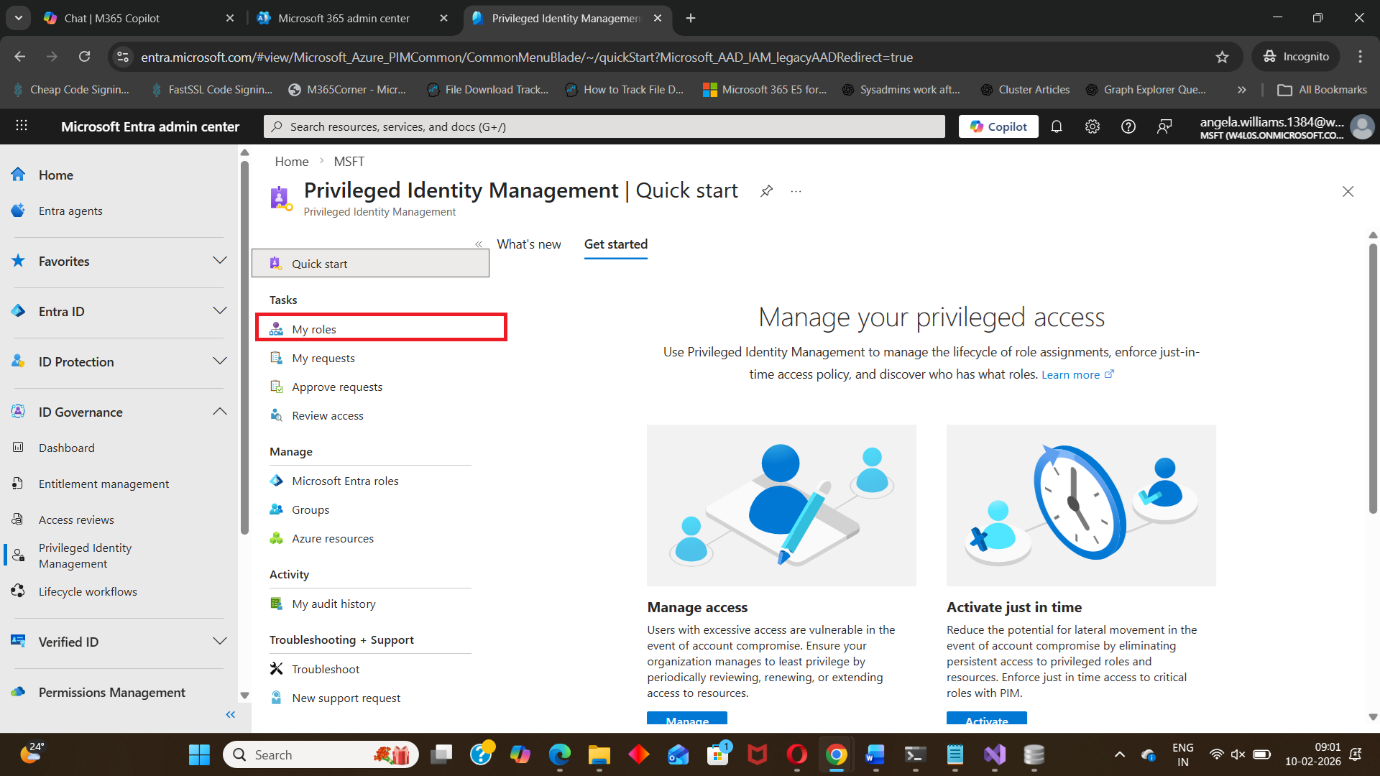
Step 3: Open “My Roles”
Under PIM, click:
- My roles
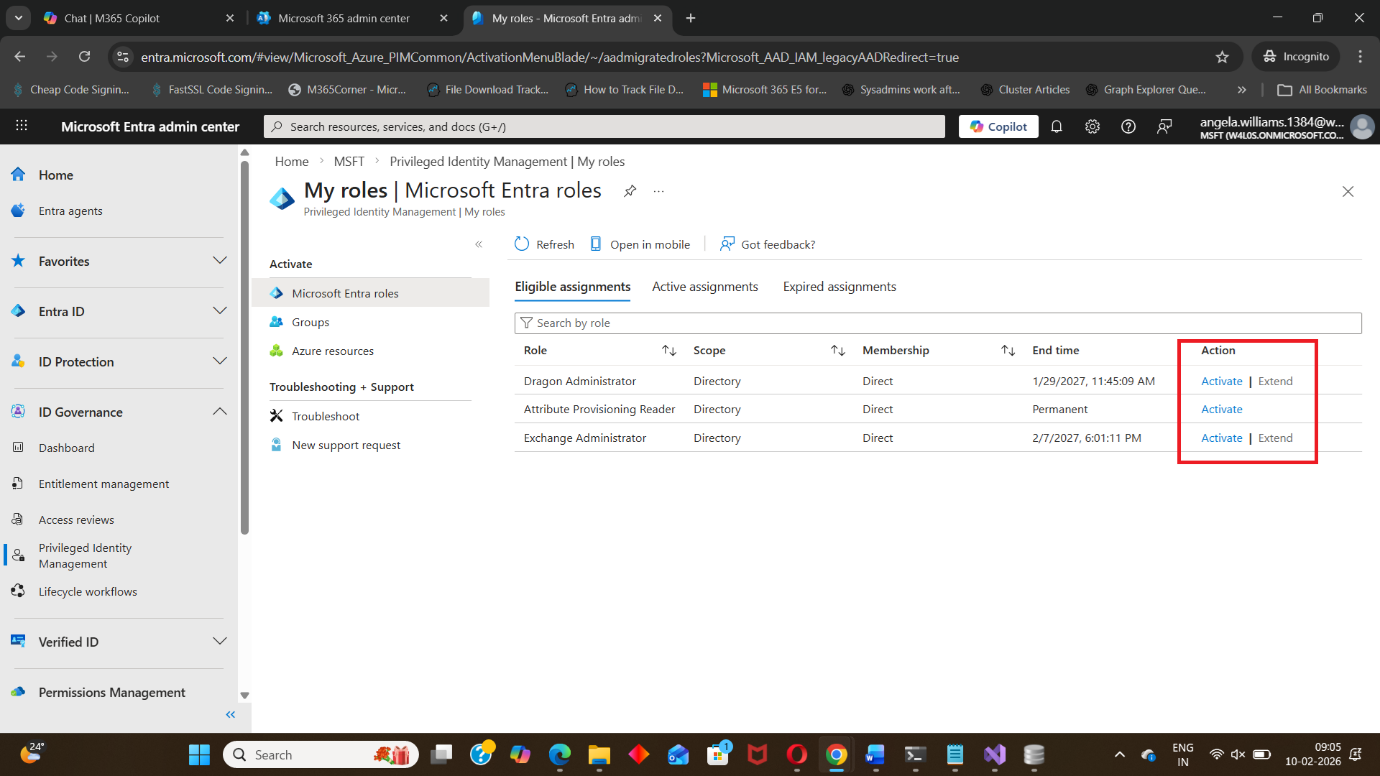
This section shows all roles that you are eligible to activate.
Step 4: Select the Role to Activate
Under Eligible assignments, choose the admin role you want to activate, such as:
- Global Administrator
- Security Administrator
- Exchange Administrator
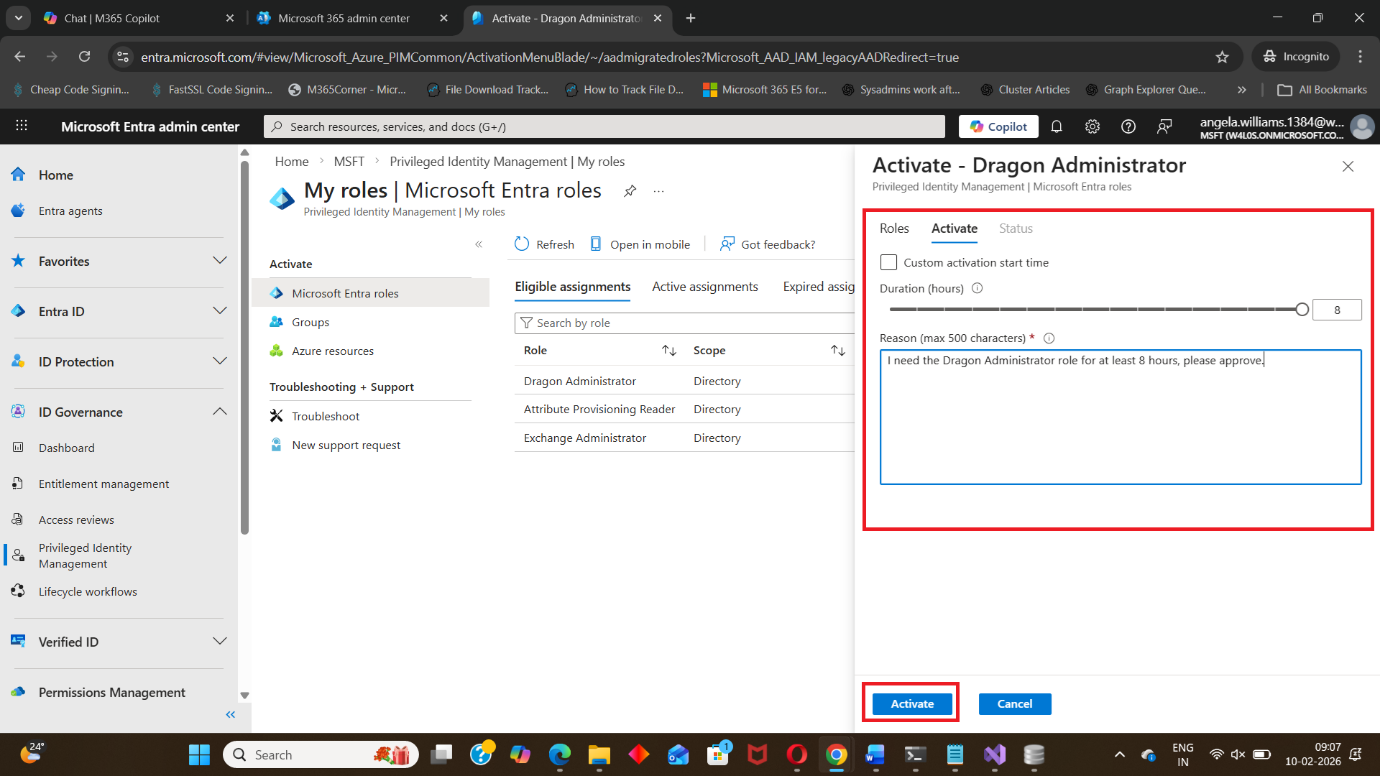
You may be required to enter: Justification (mandatory in most organizations) and
Activation duration (example: 1 hour)
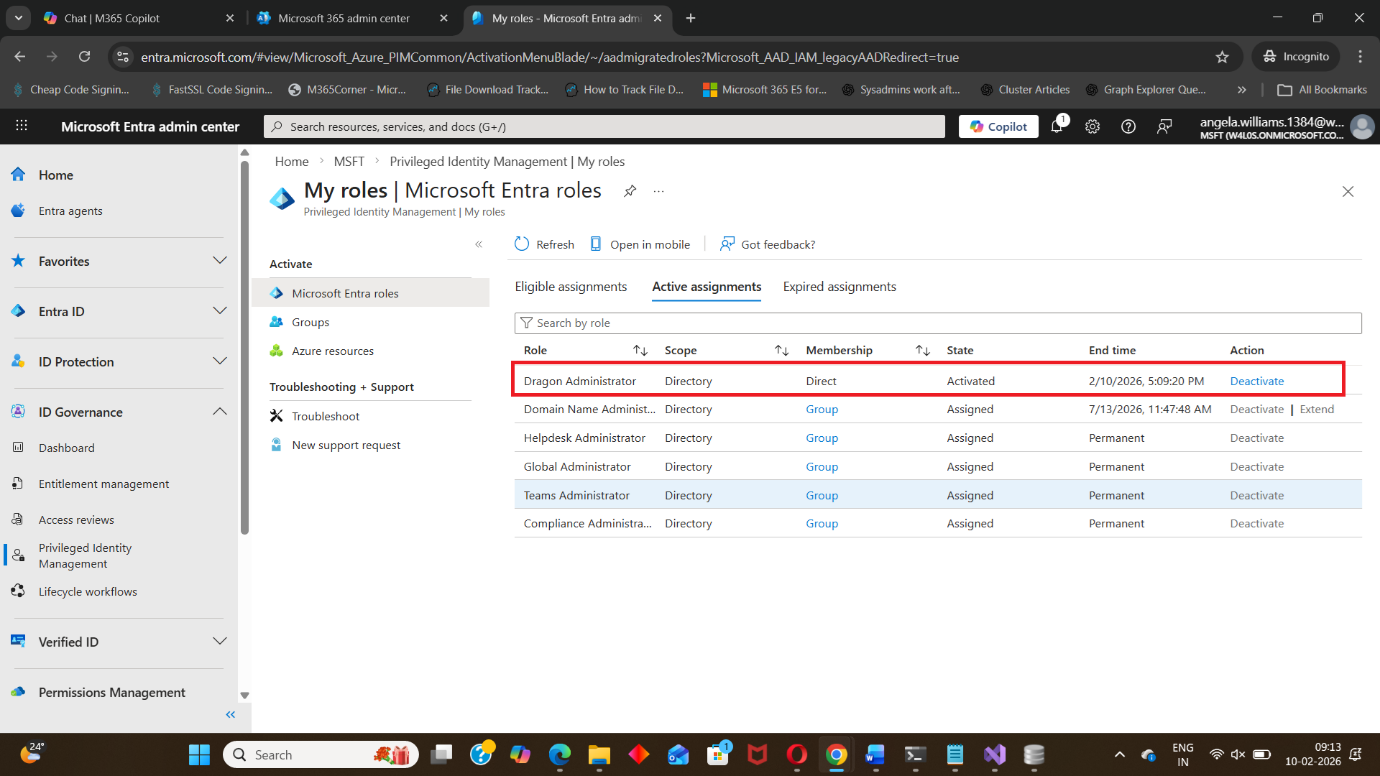
Step 5: Verify Active Role Assignment
After activation, the role will appear under:
- Active assignments
You now have temporary administrator permissions.
Activate PIM Eligible Roles Using Graph PowerShell
Role activation can also be performed programmatically using Microsoft Graph PowerShell.
This is useful for automation or advanced administrative workflows.
Graph PowerShell Script for Role Activation
$params = @{
  "PrincipalId" = "d29e358a-a443-4d83-98b3-499a5405bb5b"
  "RoleDefinitionId" = "88d8e3e3-8f55-4a1e-953a-9b9898b8876b"
  "Justification" = "Activate assignment"
  "DirectoryScopeId" = "/"
  "Action" = "SelfActivate"
  "ScheduleInfo" = @{
    "StartDateTime" = Get-Date
    "Expiration" = @{
       "Type" = "AfterDuration"
       "Duration" = "PT1H"
       }
     }
    }

New-MgRoleManagementDirectoryRoleAssignmentScheduleRequest -BodyParameter $params |
  Format-List Id, Status, Action, AppScopeId, DirectoryScopeId, RoleDefinitionID, IsValidationOnly,
Justification, PrincipalId, CompletedDateTime, CreatedDateTime, TargetScheduleID
This script activates the eligible role assignment for one hour (PT1H).
Important Note: Required Graph Permissions
To successfully run this activation script, the user must have the appropriate Microsoft Graph PowerShell permissions, such as:
- RoleManagement.ReadWrite.Directory
- Privileged Role Administrator access
Without these permissions, the command will fail with authorization or access denied errors.
Always ensure you are connected to Graph using:
Connect-MgGraph -Scopes "RoleManagement.ReadWrite.Directory"Conclusion
PIM eligible role activation is a critical part of securing privileged access in Microsoft Entra ID.
Instead of providing permanent administrator permissions, PIM ensures:
- Users activate roles only when required
- Access is time-limited
- Every activation is tracked and auditable
Whether activating through the Entra Admin Center or using Graph PowerShell, PIM role activation is a best practice every organization should enforce.
Did You Know? Managing Microsoft 365 applications is even easier with automation. Try our Graph PowerShell scripts to automate tasks like generating reports, cleaning up inactive Teams, or assigning licenses efficiently.
Ready to get the most out of Microsoft 365 tools? Explore our free Microsoft 365 administration tools to simplify your administrative tasks and boost productivity.