Fetch Disabled Guest Users Created in Last 30 Days Using Graph PowerShell
Guest accounts are frequently created in Microsoft 365 environments for external collaboration. However, some guest accounts may be disabled shortly after creation due to:
- Project cancellation
- Security review
- Access revocation
- Duplicate invitations
- Governance cleanup
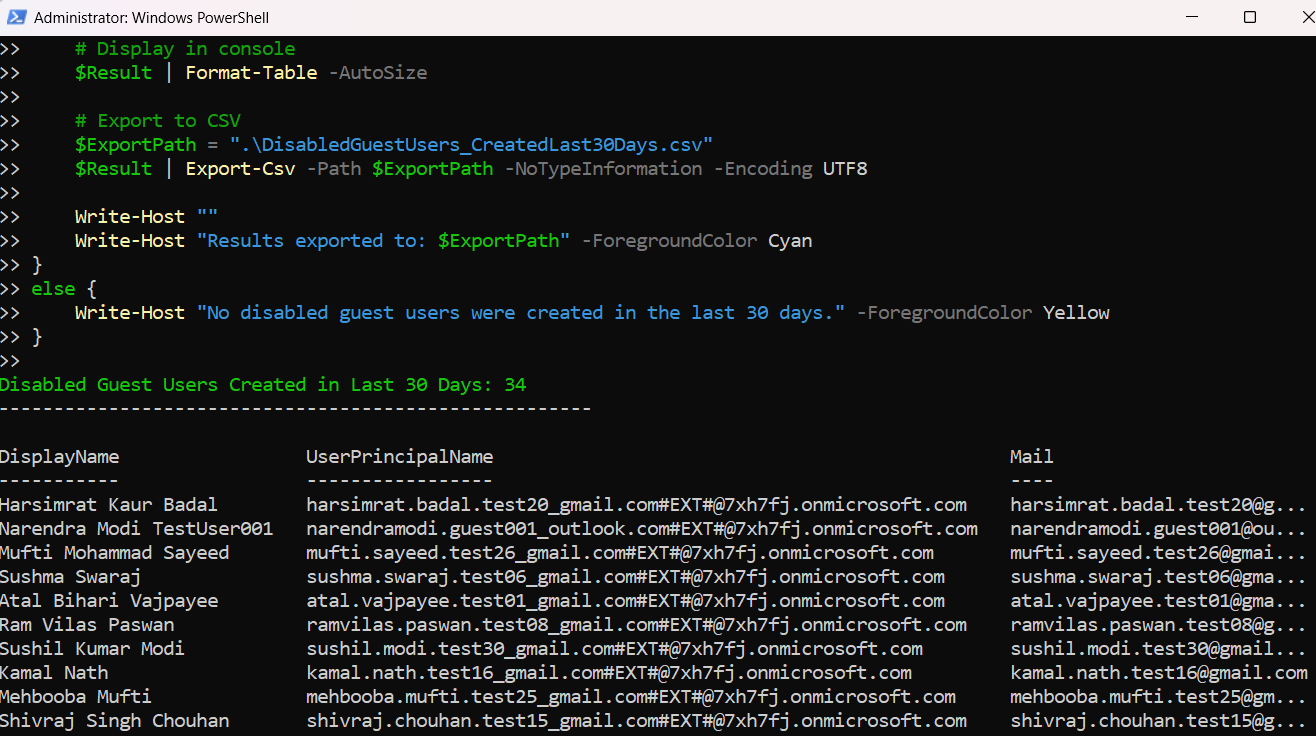
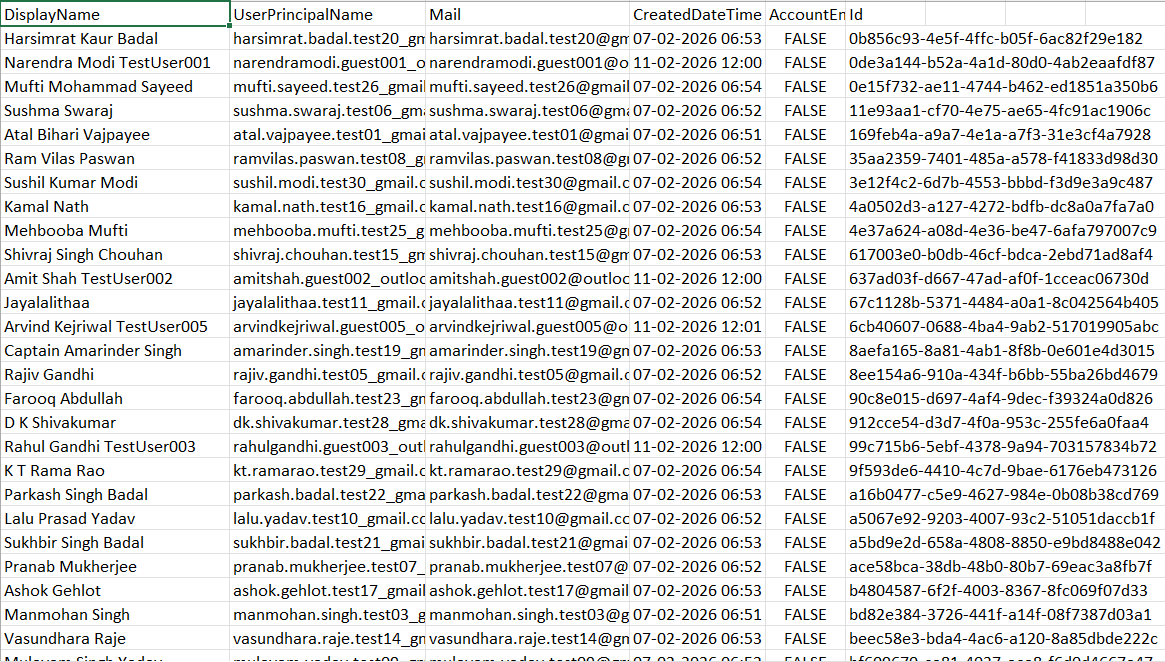
In this article, we will retrieve: Guest users that were created in the last 30 days and are currently disabled. This report helps administrators quickly identify newly created guest accounts that are no longer active.
🚀 Community Edition Released!
Try the M365Corner Microsoft 365 Reporting Tool — your DIY pack with 20+ out-of-the-box M365 reports for Users, Groups, and Teams.
Script: Disabled Guest Users Created in Last 30 Days
# ==========================================
# Script: Disabled Guest Users Created in Last 30 Days
# ==========================================

# Connect to Microsoft Graph
Connect-MgGraph -Scopes "User.Read.All"

# Define date range (Last 30 Days)
$StartDate = (Get-Date).AddDays(-30).ToUniversalTime().ToString("yyyy-MM-ddTHH:mm:ssZ")

# Fetch disabled guest users created in last 30 days
$DisabledGuests = Get-MgUser `
    -Filter "userType eq 'Guest' and accountEnabled eq false and createdDateTime ge $StartDate" `
    -ConsistencyLevel eventual `
    -CountVariable Count `
    -All `
    -Select "id,displayName,userPrincipalName,mail,createdDateTime,accountEnabled"

if ($DisabledGuests.Count -gt 0) {

    Write-Host "Disabled Guest Users Created in Last 30 Days: $Count" -ForegroundColor Green
    Write-Host "------------------------------------------------------"

    $Result = $DisabledGuests | Select-Object `
        DisplayName,
        UserPrincipalName,
        Mail,
        CreatedDateTime,
        AccountEnabled,
        Id

    # Display in console
    $Result | Format-Table -AutoSize

    # Export to CSV
    $ExportPath = ".\DisabledGuestUsers_CreatedLast30Days.csv"
    $Result | Export-Csv -Path $ExportPath -NoTypeInformation -Encoding UTF8

    Write-Host ""
    Write-Host "Results exported to: $ExportPath" -ForegroundColor Cyan
}
else {
    Write-Host "No disabled guest users were created in the last 30 days." -ForegroundColor Yellow
}
How the Script Works
Let’s break down the key components.
- Connecting to Microsoft Graph
- Calculating the Last 30 Days
- UTC
- ISO 8601 format
- Filtering Logic Explained
- userType eq 'Guest' → Only external B2B users
- accountEnabled eq false → Currently disabled accounts
- createdDateTime ge → Created within the last 30 days
- Why -ConsistencyLevel Eventual is Required
- Multiple conditions
- $count
- Complex queries
- Selecting Required Properties
- CreatedDateTime is populated
- AccountEnabled is returned correctly
- Exporting to CSV
- Share with compliance teams
- Archive for governance review
- Perform further analysis
Connect-MgGraph -Scopes "User.Read.All"This scope allows reading user properties across the tenant.
Admin consent may be required.
$StartDate = (Get-Date).AddDays(-30).ToUniversalTime().ToString("yyyy-MM-ddTHH:mm:ssZ")Microsoft Graph requires date filters in:
This ensures the filter works correctly with createdDateTime.
-Filter "userType eq 'Guest' and accountEnabled eq false and createdDateTime ge $StartDate"This filter retrieves:
This is a current state report, not a historical disable report.
Advanced filters using:
Require: -ConsistencyLevel eventual. Without it, you may receive query errors.
We use:
-Select "id,displayName,userPrincipalName,mail,createdDateTime,accountEnabled"Graph does not always return all properties by default. Explicit selection ensures:
The script exports results to:
DisabledGuestUsers_CreatedLast30Days.csvThis makes it easy to:
Further Enhancements
This script can be extended in several ways.
- Make Day Range Dynamic
- Include ExternalUserState
- Identify Who Invited the Guest
- Automate Monthly Review
- Weekly
- Monthly
- Before compliance audits
Instead of fixed 30 days:
$Days = Read-Host "Enter number of days"You can add:
externalUserState
To determine whether the guest has accepted the invitation.
Pull invitation details from audit logs for deeper tracking.
Schedule this script to run:
Possible Errors and Solutions
| Error | Cause | Solution |
|---|---|---|
| Insufficient privileges to complete the operation | Missing Graph permissions. | Connect-MgGraph -Scopes "User.Read.All" Ensure admin consent is granted. |
| CreatedDateTime or AccountEnabled is blank | Properties not explicitly selected. | Always use: -Select "createdDateTime,accountEnabled" |
| Request_UnsupportedQuery | Missing consistency header. | Add: -ConsistencyLevel eventual |
| No results returned | No guest users meet all three conditions:
|
This may be normal depending on tenant activity. |
Conclusion
Monitoring disabled guest accounts is an important governance task in Microsoft 365.
This script provides administrators with a quick and effective way to:
- Identify recently created guest accounts that are now disabled
- Detect onboarding issues
- Validate short-term external access
- Strengthen tenant security posture
For tenants with heavy external collaboration, incorporating this script into a periodic review process is highly recommended.