Bulk Assign PIM Eligible Global Administrator Role Using Microsoft Graph PowerShell
Privileged access management is one of the most critical components of Microsoft Entra ID security. Permanently assigning highly privileged roles like Global Administrator increases the attack surface and violates Zero Trust security principles.
Microsoft Entra Privileged Identity Management (PIM) helps organizations reduce standing administrator privileges by enabling just-in-time privileged access. Instead of granting permanent admin access, users can be made “eligible” for privileged roles and activate them only when required.
Using Microsoft Graph PowerShell, administrators can automate the bulk onboarding of users into PIM eligible assignments — eliminating repetitive manual effort while improving security governance and compliance.
This approach is especially useful for:
- Zero Trust administration strategies
- Enterprise onboarding projects
- Security operations teams
- Tiered administration models
- Compliance-driven environments
- Privileged access governance initiatives
In this article, we’ll walk through a production-ready Graph PowerShell script that:
- Bulk assigns PIM eligible Global Administrator access
- Imports users from CSV
- Prevents duplicate assignments
- Validates users before assignment
- Includes logging capability
- Exports failed assignments
- Verifies PIM eligibility assignments
🚀 Community Edition Released!
Try the M365Corner Microsoft 365 Reporting Tool — your DIY pack with 20+ out-of-the-box M365 reports for Users, Groups, and Teams.
What Is a PIM Eligible Assignment?
A PIM eligible assignment allows users to activate privileged roles only when required, instead of permanently holding the role.
This significantly reduces the risk of credential compromise and privilege abuse.
Eligible vs Active Role Assignments in PIM
| Assignment Type | Description | Security Impact |
|---|---|---|
| Active Assignment | User permanently holds the role | Higher risk |
| Eligible Assignment | User activates role only when needed | Lower risk |
| Time-Bound Active Assignment | Temporary active access | Moderate risk |
| Just-In-Time Access | Requires activation approval | Strong Zero Trust model |
Microsoft recommends using eligible assignments whenever possible for privileged roles like Global Administrator.
Prerequisites
Before running the script:
- Install Microsoft Graph PowerShell SDK
- Enable Microsoft Entra PIM
- Prepare the CSV file
- Ensure required permissions are granted
Install Microsoft Graph PowerShell module if needed:
Install-Module Microsoft.Graph -Scope CurrentUserLicensing Requirements
Microsoft Entra Privileged Identity Management requires one of the following licenses:
- Microsoft Entra ID P2
OR - Microsoft 365 E5
Without appropriate licensing, PIM role assignments will fail.
Required Microsoft Graph Permissions
Connect to Microsoft Graph using the following scopes:
Connect-MgGraph -Scopes `
"RoleManagement.ReadWrite.Directory",
"Directory.ReadWrite.All",
"User.Read.All"
Why These Permissions Are Required
| Permission | Purpose |
|---|---|
| RoleManagement.ReadWrite.Directory | Manage PIM role assignments |
| Directory.ReadWrite.All | Access directory objects |
| User.Read.All | Validate user accounts |
Required Administrative Roles
The signed-in account should hold one of the following roles:
- Global Administrator
- Privileged Role Administrator
CSV File Format
Prepare a CSV file named:
C:\Temp\PIMEligibleAdmins.csv
Sample CSV Structure
UserPrincipalName
admin1@contoso.com
admin2@contoso.com
admin3@contoso.com
The Script
# Connect to Microsoft Graph
Connect-MgGraph -Scopes `
"RoleManagement.ReadWrite.Directory",
"Directory.ReadWrite.All",
"User.Read.All"

# Import CSV
$Users = Import-Csv "C:\Temp\PIMEligibleAdmins.csv"

# Initialize results array
$Results = @()

# Get Global Administrator role definition
$RoleDefinition = Get-MgRoleManagementDirectoryRoleDefinition `
    -Filter "displayName eq 'Global Administrator'"

if (-not $RoleDefinition) {
    Write-Host "Global Administrator role definition not found. Exiting script." -ForegroundColor Red
    return
}

# Schedule information
$StartDateTime = Get-Date
$EndDateTime = $StartDateTime.AddYears(1)

foreach ($UserEntry in $Users) {

    $UPN = $UserEntry.UserPrincipalName

    Write-Host "`nProcessing user: $UPN" -ForegroundColor Cyan

    try {

        # Validate user
        $User = Get-MgUser -UserId $UPN -ErrorAction SilentlyContinue

        if (-not $User) {

            Write-Host "User not found: $UPN" -ForegroundColor Red

            $Results += [PSCustomObject]@{
                UserPrincipalName = $UPN
                Status            = "Failed"
                Message           = "User not found"
                TimeStamp         = Get-Date
            }

            continue
        }

        # Check for existing eligible assignment
        $ExistingAssignment = Get-MgRoleManagementDirectoryRoleEligibilityScheduleInstance `
            -Filter "principalId eq '$($User.Id)'"

        $AlreadyAssigned = $ExistingAssignment | Where-Object {
            $_.RoleDefinitionId -eq $RoleDefinition.Id
        }

        if ($AlreadyAssigned) {

            Write-Host "Eligible assignment already exists for $UPN" -ForegroundColor Yellow

            $Results += [PSCustomObject]@{
                UserPrincipalName = $UPN
                Status            = "Skipped"
                Message           = "Eligible assignment already exists"
                TimeStamp         = Get-Date
            }

            continue
        }

        # Create eligible assignment request
        $Params = @{
            Action           = "adminAssign"
            PrincipalId      = $User.Id
            RoleDefinitionId = $RoleDefinition.Id
            DirectoryScopeId = "/"
            Justification    = "Bulk PIM onboarding using Graph PowerShell"
            ScheduleInfo     = @{
                StartDateTime = $StartDateTime
                Expiration    = @{
                    Type        = "afterDateTime"
                    EndDateTime = $EndDateTime
                }
            }
        }

        New-MgRoleManagementDirectoryRoleEligibilityScheduleRequest `
            -BodyParameter $Params

        Write-Host "PIM eligible assignment created for $UPN" -ForegroundColor Green

        $Results += [PSCustomObject]@{
            UserPrincipalName = $UPN
            Status            = "Success"
            Message           = "Eligible assignment created successfully"
            TimeStamp         = Get-Date
        }
    }
    catch {

        Write-Host "Error processing user: $UPN" -ForegroundColor Red
        Write-Host $_.Exception.Message -ForegroundColor Red

        $Results += [PSCustomObject]@{
            UserPrincipalName = $UPN
            Status            = "Failed"
            Message           = $_.Exception.Message
            TimeStamp         = Get-Date
        }
    }
}

# Export final results
$Results | Export-Csv `
    "C:\Temp\PIMEligibleAssignmentResults.csv" `
    -NoTypeInformation

Write-Host "`nResults exported to C:\Temp\PIMEligibleAssignmentResults.csv" `
    -ForegroundColor Green
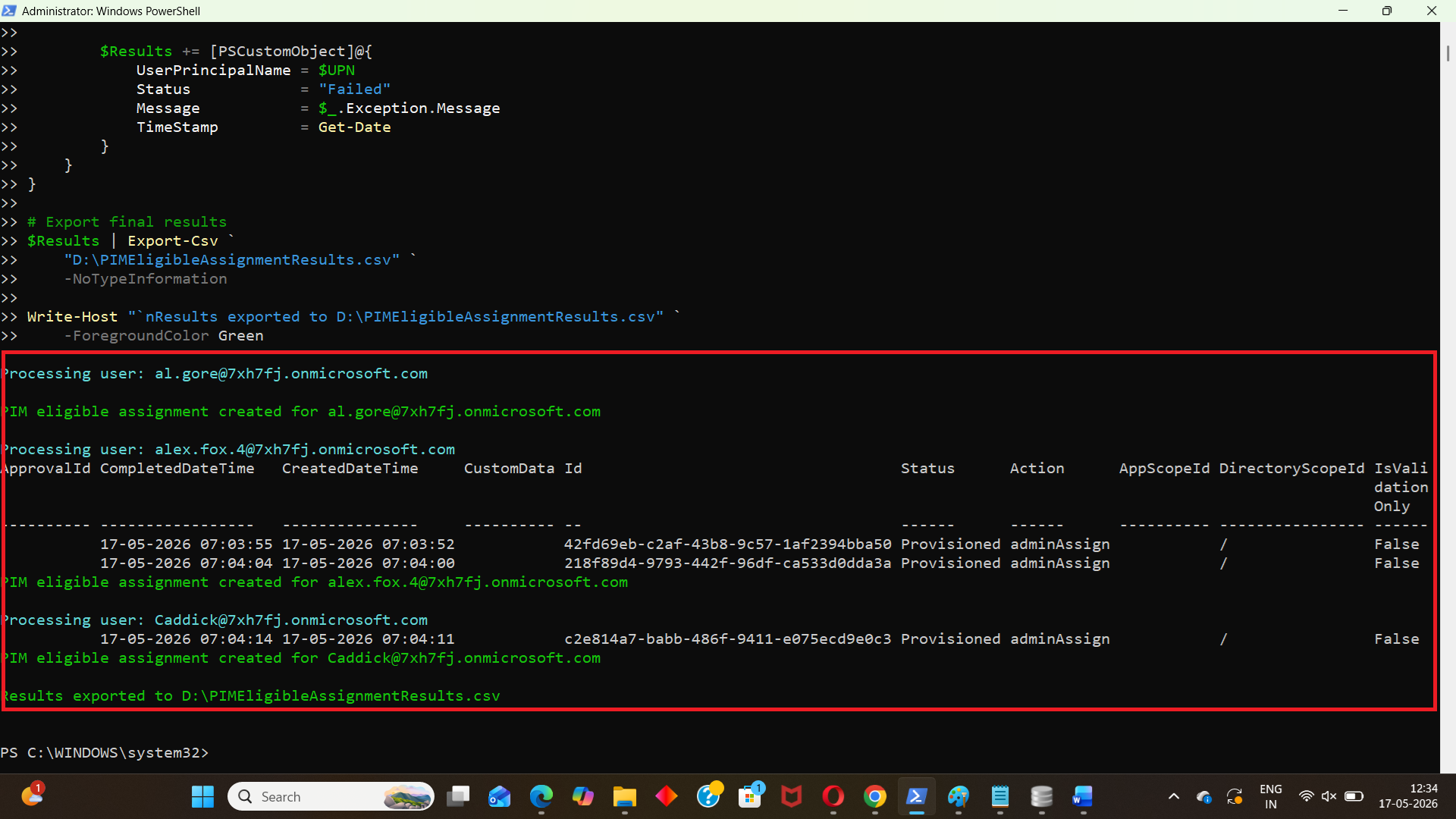
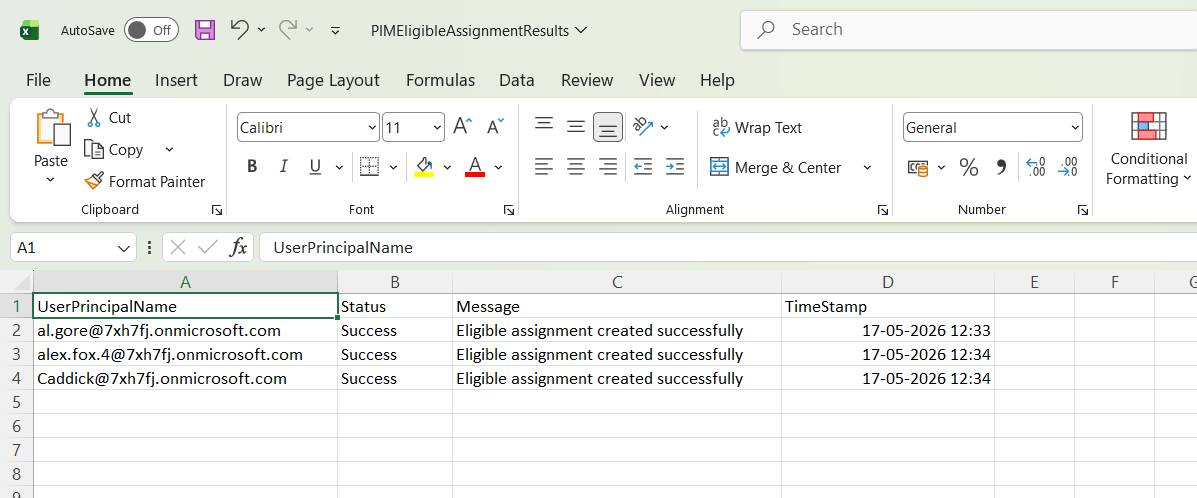
How the Script Works
Step 1: Connects to Microsoft Graph
The script first connects to Microsoft Graph using the required scopes for Privileged Identity Management (PIM), directory access, and user validation.
Connect-MgGraph -Scopes `
"RoleManagement.ReadWrite.Directory","Directory.ReadWrite.All",
"User.Read.All"
These permissions are necessary to:
- Create PIM eligibility assignments
- Access directory role definitions
- Validate user accounts before assignment
Step 2: Imports Users from CSV
The script imports all target users from the CSV file.
$Users = Import-Csv "C:\Temp\PIMEligibleAdmins.csv"
Each row in the CSV should contain a valid UserPrincipalName.
This allows administrators to bulk onboard multiple users into PIM eligible Global Administrator assignments without manual intervention.
Step 3: Initializes the Results Tracking Array
Instead of using transcript logging, the script creates a structured results array to track:
- Successful assignments
- Skipped assignments
- Failed assignments
$Results = @()
This makes the script more enterprise-friendly because the results can later be exported into a CSV report for auditing and troubleshooting.
Step 4: Retrieves the Global Administrator Role Definition
The script retrieves the Microsoft Entra role definition for the Global Administrator role.
$RoleDefinition = Get-MgRoleManagementDirectoryRoleDefinition `
  -Filter "displayName eq 'Global Administrator'"
If the role definition cannot be found, the script exits safely to avoid invalid assignment requests.
Step 5: Configures the Eligibility Schedule
The script defines:
- Assignment start date
- Assignment expiration date
$StartDateTime = Get-Date
$EndDateTime = $StartDateTime.AddYears(1)
In this example, users remain eligible for Global Administrator access for one year.
You can customize this duration as needed for your organization’s security policies.
Step 6: Validates Each User Before Assignment
Before creating a PIM assignment, the script verifies whether the user exists in Microsoft Entra ID.
$User = Get-MgUser -UserId $UPN -ErrorAction SilentlyContinueThis prevents:
- Invalid user assignment attempts
- Unnecessary API failures
- Incorrect UPN processing
If the user does not exist, the script records the failure in the results array and continues processing the next user.
Step 7: Checks for Existing Eligible Assignments
The script verifies whether the user already has a PIM eligible Global Administrator assignment.
$ExistingAssignment = Get-MgRoleManagementDirectoryRoleEligibilityScheduleInstance `
  -Filter "principalId eq '$($User.Id)'"
It then checks whether the assignment already exists for the Global Administrator role.
This prevents:
- Duplicate eligibility assignments
- Script failures
- Redundant PIM requests
Users who already have eligible assignments are marked as “Skipped” in the final CSV report.
Step 8: Creates the PIM Eligible Assignment
The script creates a new eligible assignment request using:
New-MgRoleManagementDirectoryRoleEligibilityScheduleRequest
The request includes:
- User ID
- Global Administrator role definition
- Directory scope
- Justification
- Expiration settings
The assignment type used is:
Action = "adminAssign"
This makes the user eligible for Global Administrator access through Microsoft Entra PIM.
Step 9: Captures Success, Failure, and Skipped Results
For every processed user, the script records:
- UserPrincipalName
- Status
- Message
- Timestamp
Example success entry:
$Results += [PSCustomObject]@{
    UserPrincipalName = $UPN
    Status            = "Success"
    Message           = "Eligible assignment created successfully"
    TimeStamp         = Get-Date
}
This provides structured reporting for administrators.
Step 10: Exports the Final Results to CSV
After processing all users, the script exports the results to:
C:\Temp\PIMEligibleAssignmentResults.csvusing:
$Results | Export-Csv `
    "C:\Temp\PIMEligibleAssignmentResults.csv" `
    -NoTypeInformation
The CSV report includes:
- Successful assignments
- Skipped users
- Failed assignments
- Error messages
- Processing timestamps
This makes the script suitable for:
- Audit tracking
- Compliance reporting
- Troubleshooting
- Bulk reprocessing of failed users
Verify All Eligible Assignments
Get-MgRoleManagementDirectoryRoleEligibilityScheduleInstance
Verify Global Administrator Eligibility
Get-MgRoleManagementDirectoryRoleEligibilityScheduleInstance |
Where-Object {
  $_.RoleDefinitionId -eq $RoleDefinition.Id
}
Verify Active Assignments
Get-MgRoleManagementDirectoryRoleAssignmentScheduleInstanceCommon PIM Automation Use Cases
| Use Case | Benefit |
|---|---|
| Bulk onboarding security admins | Faster privileged access setup |
| Temporary project-based admin access | Reduced standing privileges |
| Global admin reduction initiatives | Lower attack surface |
| Compliance-driven governance | Improved auditing |
| Helpdesk privilege elevation | Controlled escalation |
| Tiered administration | Better privilege separation |
PIM Security Best Practices
To improve privileged access security:
- Avoid permanent Global Administrator assignments
- Require MFA for activation
- Enable approval workflows
- Use time-bound activations
- Review eligible assignments regularly
- Monitor PIM activation logs
- Limit activation duration
- Use role-assignable groups where possible
Organizations often combine role-assignable groups with PIM eligible assignments to simplify privileged access management at scale.
Possible Errors and Solutions
| Error | Cause | Solution |
|---|---|---|
| Insufficient privileges to complete the operation | The signed-in account lacks required Graph permissions or Entra roles. | Ensure:
|
| Resource not found | The user specified in the CSV file does not exist. | Verify:
|
| The role assignment already exists | The user already has an eligible assignment. | The updated script already prevents duplicate assignments by validating existing eligibility before assignment. |
| License assignment required | Microsoft Entra ID P2 licensing is unavailable. | Assign: Microsoft Entra ID P2 OR Microsoft 365 E5 licensing |
Further Enhancements
You can further enhance this solution by adding:
- Dynamic role selection from CSV
- Approval workflow integration
- MFA policy enforcement
- Role activation notifications
- HTML reporting
- Audit report exports
- Conditional Access validation
- Automatic role removal
- ServiceNow integration
Frequently Asked Questions
- Does PIM require Microsoft Entra ID P2?
- What is the difference between eligible and active assignments?
- Can PIM assignments be automated using Graph PowerShell?
- Why is the role not immediately active after assignment?
- Can Global Administrator roles be assigned permanently using PIM?
Yes. PIM requires Microsoft Entra ID P2 or Microsoft 365 E5 licensing.
Eligible assignments require role activation before access is granted, whereas active assignments provide standing administrator access.
Yes. Microsoft Graph PowerShell supports automation of eligible and active role assignments.
Eligible assignments require the user to activate the role through Microsoft Entra PIM.
Yes, but Microsoft strongly recommends using eligible assignments instead of permanent standing access.
Conclusion
Microsoft Entra PIM plays a critical role in modern Zero Trust privileged access strategies by eliminating unnecessary standing administrator privileges.
Using Microsoft Graph PowerShell, administrators can automate privileged access onboarding at scale while improving operational efficiency, security governance, and compliance readiness.
The enhanced script covered in this article includes:
- Bulk PIM onboarding
- User validation
- Duplicate assignment prevention
- Logging
- Failure reporting
- Verification commands
- Expiration handling
This makes it suitable for enterprise-grade privileged access management and large-scale Microsoft Entra administration.