Automate Privileged Access Governance with Role-Assignable Groups Using Graph PowerShell
Managing privileged access in Microsoft Entra ID requires strong governance controls to ensure that administrative permissions are assigned securely and consistently. Directly assigning privileged roles to individual users can create:
- RBAC sprawl
- inconsistent access management
- difficult audit processes
- excessive privileged exposure
Role-assignable groups help organizations centralize privileged access management by allowing Microsoft Entra roles to be assigned to groups instead of individual users.
This Graph PowerShell automation script helps administrators:
- Bulk add users to role-assignable groups
- Validate users before assignment
- Detect duplicate memberships
- Block guest user assignments
- Generate privileged access governance reports
- Automatically email governance summaries
The solution is ideal for:
- privileged admin onboarding
- RBAC governance
- least privilege administration
- security operations
- compliance reviews
🚀 Community Edition Released!
Try the M365Corner Microsoft 365 Reporting Tool — your DIY pack with 20+ out-of-the-box M365 reports for Users, Groups, and Teams.
Why Role-Assignable Groups Matter
Role-assignable groups provide a more scalable and governable way to manage privileged access in Microsoft Entra ID.
Instead of assigning roles directly to users, organizations can:
- assign roles to groups
- manage membership centrally
- simplify RBAC governance
- improve auditability
- reduce administrative overhead
This approach supports:
- least privilege administration
- Zero Trust security models
- privileged access governance
- standardized admin onboarding
Benefits of Assigning Roles to Groups Instead of Users
| Direct Role Assignment | Group-Based Role Assignment |
|---|---|
| Harder to audit | Centralized governance |
| Manual administration | Easier onboarding |
| Inconsistent role management | Standardized RBAC |
| Increased admin sprawl | Cleaner privilege management |
| Difficult lifecycle reviews | Simplified access reviews |
Role-assignable groups help organizations maintain stronger privileged access governance across Microsoft 365 environments.
Prerequisites
Install the Microsoft Graph PowerShell module if it is not already installed:
Install-Module Microsoft.Graph -Scope CurrentUserConnect to Microsoft Graph using the required permissions:
Connect-MgGraph -Scopes `
"Group.ReadWrite.All",
"User.Read.All",
"Directory.Read.All",
"Mail.Send"
CSV File Format
Prepare a CSV file with the following columns:
| UserPrincipalName | GroupId |
|---|---|
| admin1@contoso.com | xxxxxxxx-xxxx-xxxx-xxxx-xxxxxxxxxxxx |
| admin2@contoso.com | xxxxxxxx-xxxx-xxxx-xxxx-xxxxxxxxxxxx |
Save the file as:
C:\Reports\RoleAssignableGroupMembers.csv
The Script
# Connect to Microsoft Graph
Connect-MgGraph -Scopes `
"Group.ReadWrite.All",
"User.Read.All",
"Directory.Read.All",
"Mail.Send"

# CSV input file
$CsvPath = "C:\Reports\RoleAssignableGroupMembers.csv"

# Export report path
$ReportPath = "C:\Reports\PrivilegedAccessGovernanceReport.csv"

# Email settings
$Sender = "admin@contoso.com"
$Recipient = "securityteam@contoso.com"

# Dry-run mode
$DryRun = $false

# Import CSV
$Entries = Import-Csv $CsvPath

$GovernanceReport = @()

# Track duplicate CSV rows
$ProcessedCsvEntries = @{}

# Cache group members
$GroupMemberCache = @{}

foreach ($Entry in $Entries) {

    $UPN = $Entry.UserPrincipalName.Trim()
    $GroupId = $Entry.GroupId.Trim()

    $CsvKey = "$($UPN.ToLower())|$($GroupId.ToLower())"

    if ($ProcessedCsvEntries.ContainsKey($CsvKey)) {

        $GovernanceReport += [PSCustomObject]@{
            UserPrincipalName = $UPN
            GroupId           = $GroupId
            Status            = "Skipped"
            Risk              = "Duplicate CSV Entry"
            Recommendation    = "Remove duplicate row from CSV file"
        }

        Write-Host "Duplicate CSV entry skipped: $UPN" -ForegroundColor Yellow
        continue
    }

    $ProcessedCsvEntries[$CsvKey] = $true

    try {

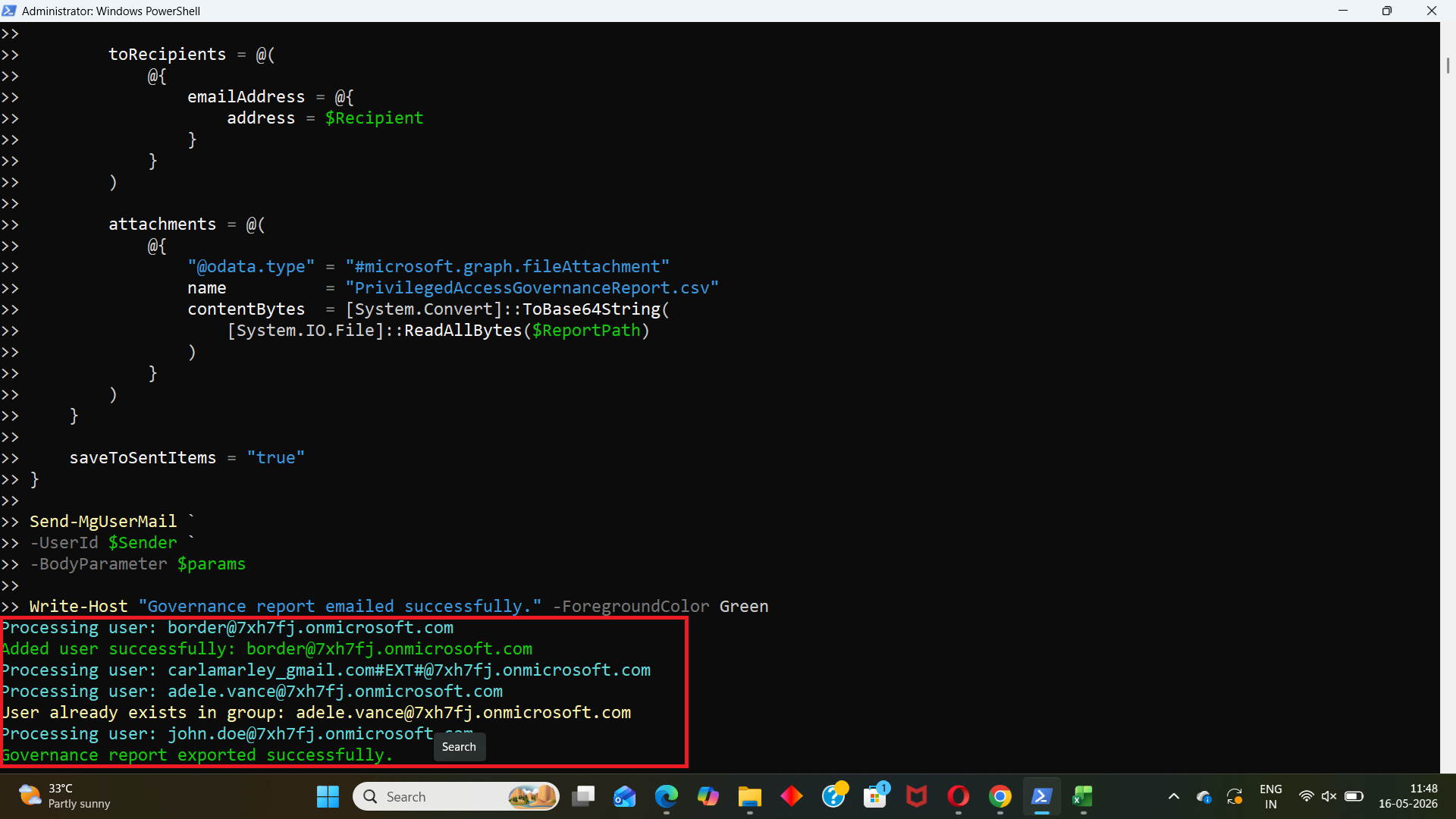
        Write-Host "Processing user: $UPN" -ForegroundColor Cyan

        # Validate user
        $User = Get-MgUser `
        -UserId $UPN `
        -Property @(
            "Id",
            "DisplayName",
            "UserPrincipalName",
            "AccountEnabled",
            "UserType"
        ) `
        -ErrorAction Stop

        # Guest user check
        if ($User.UserType -eq "Guest") {

            $GovernanceReport += [PSCustomObject]@{
                UserPrincipalName = $UPN
                GroupId           = $GroupId
                Status            = "Blocked"
                Risk              = "Guest User"
                Recommendation    = "Do not assign guest users to role-assignable groups"
            }

            continue
        }

        # Disabled account check
        if ($null -eq $User.AccountEnabled -or $User.AccountEnabled -eq $false) {

            $GovernanceReport += [PSCustomObject]@{
                UserPrincipalName = $UPN
                GroupId           = $GroupId
                Status            = "Skipped"
                Risk              = "Disabled Account"
                Recommendation    = "Review stale or disabled privileged accounts"
            }

            continue
        }

        # Cache group members
        if (-not $GroupMemberCache.ContainsKey($GroupId)) {

            $ExistingMembers = Get-MgGroupMember `
            -GroupId $GroupId `
            -All

            $GroupMemberCache[$GroupId] = @($ExistingMembers.Id)
        }

        # Check existing membership
        $AlreadyExists = $GroupMemberCache[$GroupId] -contains $User.Id

        if ($AlreadyExists) {

            $GovernanceReport += [PSCustomObject]@{
                UserPrincipalName = $UPN
                GroupId           = $GroupId
                Status            = "Skipped"
                Risk              = "Existing Membership"
                Recommendation    = "User is already a member of the role-assignable group"
            }

            Write-Host "User already exists in group: $UPN" -ForegroundColor Yellow
            continue
        }

        # Dry-run mode
        if ($DryRun -eq $true) {

            $GovernanceReport += [PSCustomObject]@{
                UserPrincipalName = $UPN
                GroupId           = $GroupId
                Status            = "DryRun"
                Risk              = "None"
                Recommendation    = "Preview mode enabled. User was not added."
            }

            continue
        }

        # Add user to group
        New-MgGroupMember `
        -GroupId $GroupId `
        -DirectoryObjectId $User.Id

        # Update cache
        $GroupMemberCache[$GroupId] += $User.Id

        $GovernanceReport += [PSCustomObject]@{
            UserPrincipalName = $UPN
            GroupId           = $GroupId
            Status            = "Success"
            Risk              = "None"
            Recommendation    = "User added successfully"
        }

        Write-Host "Added user successfully: $UPN" -ForegroundColor Green
    }

    catch {

        $GovernanceReport += [PSCustomObject]@{
            UserPrincipalName = $UPN
            GroupId           = $GroupId
            Status            = "Failed"
            Risk              = "Validation Failure"
            Recommendation    = $_.Exception.Message
        }

        Write-Host "Error processing user: $UPN" -ForegroundColor Red
        Write-Host $_.Exception.Message
    }
}

# Export report
$GovernanceReport | Export-Csv `
-Path $ReportPath `
-NoTypeInformation `
-Encoding UTF8

Write-Host "Governance report exported successfully." -ForegroundColor Green

# Stats
$SuccessfulAdds = (
    $GovernanceReport |
    Where-Object {
        $_.Status -eq "Success"
    }
).Count

$BlockedUsers = (
    $GovernanceReport |
    Where-Object {
        $_.Status -eq "Blocked"
    }
).Count

$DuplicateCsvEntries = (
    $GovernanceReport |
    Where-Object {
        $_.Risk -eq "Duplicate CSV Entry"
    }
).Count

$ExistingMemberships = (
    $GovernanceReport |
    Where-Object {
        $_.Risk -eq "Existing Membership"
    }
).Count

$Failures = (
    $GovernanceReport |
    Where-Object {
        $_.Status -eq "Failed"
    }
).Count

# HTML preview
$HtmlPreview = (
    $GovernanceReport |
    Select-Object -First 10 |
    ConvertTo-Html -Fragment
)

# Email body
$EmailBody = @"
<html>
<body>

<h2>Privileged Access Governance Report</h2>

<p>The role-assignable group governance review has completed successfully.</p>

<ul>
<li>Successful Additions: $SuccessfulAdds</li>
<li>Blocked Guest Users: $BlockedUsers</li>
<li>Duplicate CSV Entries: $DuplicateCsvEntries</li>
<li>Existing Memberships: $ExistingMemberships</li>
<li>Failures: $Failures</li>
</ul>

<p>Below is a preview of the first 10 processed entries:</p>

$HtmlPreview

</body>
</html>
"@

# Send email
$params = @{
    message = @{
        subject = "Privileged Access Governance Report"

        body = @{
            contentType = "HTML"
            content = $EmailBody
        }

        toRecipients = @(
            @{
                emailAddress = @{
                    address = $Recipient
                }
            }
        )

        attachments = @(
            @{
                "@odata.type" = "#microsoft.graph.fileAttachment"
                name          = "PrivilegedAccessGovernanceReport.csv"
                contentBytes  = [System.Convert]::ToBase64String(
                    [System.IO.File]::ReadAllBytes($ReportPath)
                )
            }
        )
    }

    saveToSentItems = "true"
}

Send-MgUserMail `
-UserId $Sender `
-BodyParameter $params

Write-Host "Governance report emailed successfully." -ForegroundColor Green
How the Script Works
- Imports Users and Role-Assignable Groups from CSV
- a user to be added
- the target role-assignable group
- Detects Duplicate CSV Entries
- UserPrincipalName
- GroupId combination
- accidental duplicate onboarding requests
- unnecessary processing
- governance inconsistencies
- Validates User Accounts
- AccountEnabled
- UserType
- UserPrincipalName
- enabled accounts
- guest users
- valid Microsoft Entra user objects
- Blocks Guest User Assignments
- reduce privileged access exposure
- strengthen RBAC governance
- maintain least privilege administration
- Detects Disabled Accounts
- stale admin accounts
- inactive privileged identities
- unnecessary privileged access assignments
- Detects Existing Group Memberships
- duplicate group memberships
- unnecessary API operations
- RBAC inconsistencies
- Supports Dry-Run Mode
- no users are added
- all validations still run
- governance reports are still generated
- Adds Users to Role-Assignable Groups
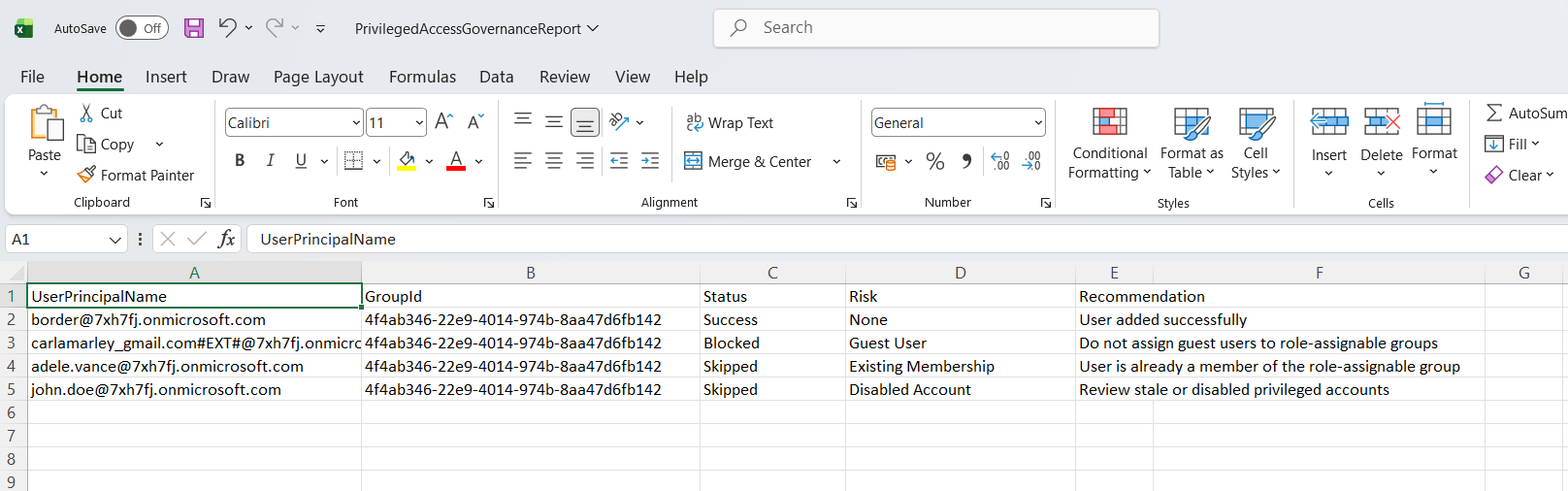
- Generates a Governance Report
- successful additions
- blocked guest users
- duplicate CSV entries
- existing memberships
- disabled accounts
- failed validations
- operational visibility
- auditability
- compliance tracking
- privileged access governance reporting
- Emails Governance Summaries Automatically
- governance statistics
- an HTML summary table
- the complete CSV report attachment
- successful additions
- blocked users
- duplicate records
- existing memberships
- failures
- recurring privileged access reviews
- RBAC governance workflows
- admin onboarding audits
- compliance reporting
The script imports user principal names and role-assignable group IDs from a CSV file using:
Import-Csv
Each row represents:
This makes the solution ideal for bulk privileged onboarding scenarios.
Before processing any user, the script checks whether the same:
already exists in the CSV file.
Duplicate rows are skipped and labeled as:
Duplicate CSV Entry
This helps prevent:
Only the repeated duplicate rows are skipped — the original valid record is still processed successfully.
The script retrieves and validates users using:
Get-MgUser
It explicitly retrieves:
This allows the script to properly validate:
before privileged access assignments occur.
Guest users are automatically blocked from being added to role-assignable groups.
The script checks:
UserType -eq "Guest"
Blocked guest users are reported as:
Guest User
This helps organizations:
The script validates whether accounts are enabled before assigning privileged access.
Disabled accounts are skipped and labeled as:
Disabled Account
This helps identify:
before membership changes occur.
The script retrieves existing group members using:
Get-MgGroupMember
If a user is already a member of the role-assignable group, the script skips the assignment and labels the result as:
Existing Membership
This prevents:
The script also caches group memberships to improve performance during large bulk operations.
The script includes a preview mode:
$DryRun = $true
When enabled:
This allows administrators to safely review privileged access changes before execution.
Validated users are added to the target role-assignable group using:
New-MgGroupMember
Successful assignments are labeled as:
Success
This enables secure and scalable privileged onboarding workflows.
The script generates a governance report containing:
The report is exported using:
Export-Csv
This provides:
The script automatically emails:
The email includes:
This makes the solution ideal for:
How Role-Assignable Groups Support Zero Trust
Role-assignable groups help organizations implement Zero Trust principles by:
- centralizing privileged access
- reducing standing permissions
- simplifying RBAC governance
- improving auditability
- supporting least privilege administration
This creates a more secure and governable Microsoft 365 environment.
Real-World Use Cases
- Privileged Admin Onboarding
- RBAC Standardization
- Security Governance Reviews
- Helpdesk Delegation
- Automating Privileged Access Governance
- Azure Automation
- Windows Task Scheduler
- GitHub Actions
- Scheduled PowerShell Jobs
Bulk onboard administrators into role-assignable groups securely.
Centralize privileged role assignments using group-based access management.
Review privileged assignments and detect governance risks.
Delegate administrative responsibilities using governed role-based groups.
You can automate this solution using:
This enables recurring privileged access governance reviews and onboarding workflows.
Possible Errors and Solutions
| Error | Cause | Solution |
|---|---|---|
| Insufficient privileges to complete the operation | Required Microsoft Graph permissions were not granted. | Reconnect using: Connect-MgGraph -Scopes ` "Group.Read.All", "User.Read.All", "Directory.Read.All", "Mail.Send" and ensure admin consent is granted. |
| Resource not found | The specified user or group does not exist. | Validate:
before running the script. |
| Request_BadRequest | The target group is not role-assignable. | Ensure the group was created as a role-assignable security group. |
Conclusion
Managing privileged access securely is critical for maintaining a strong Microsoft 365 security posture. Role-assignable groups help organizations centralize RBAC governance, reduce administrative sprawl, and improve privileged access management.
This Graph PowerShell automation solution helps organizations:
- automate privileged onboarding
- validate privileged assignments
- block risky access scenarios
- improve governance visibility
- maintain stronger RBAC governance
By automating privileged access governance with role-assignable groups, administrators can build more secure, scalable, and governable Microsoft Entra ID environments.