Automate Archived Microsoft Teams Reporting with PowerShell
Microsoft Teams environments tend to accumulate archived Teams over time as projects conclude, departments reorganize, or temporary collaboration spaces become inactive. While archiving preserves conversations and files, many organizations lose visibility into these dormant Teams after they are archived.
Without regular auditing, archived Teams may still contain:
- Guest users with ongoing access
- Large inactive memberships
- Teams without active owners
- Sensitive project data retained longer than expected
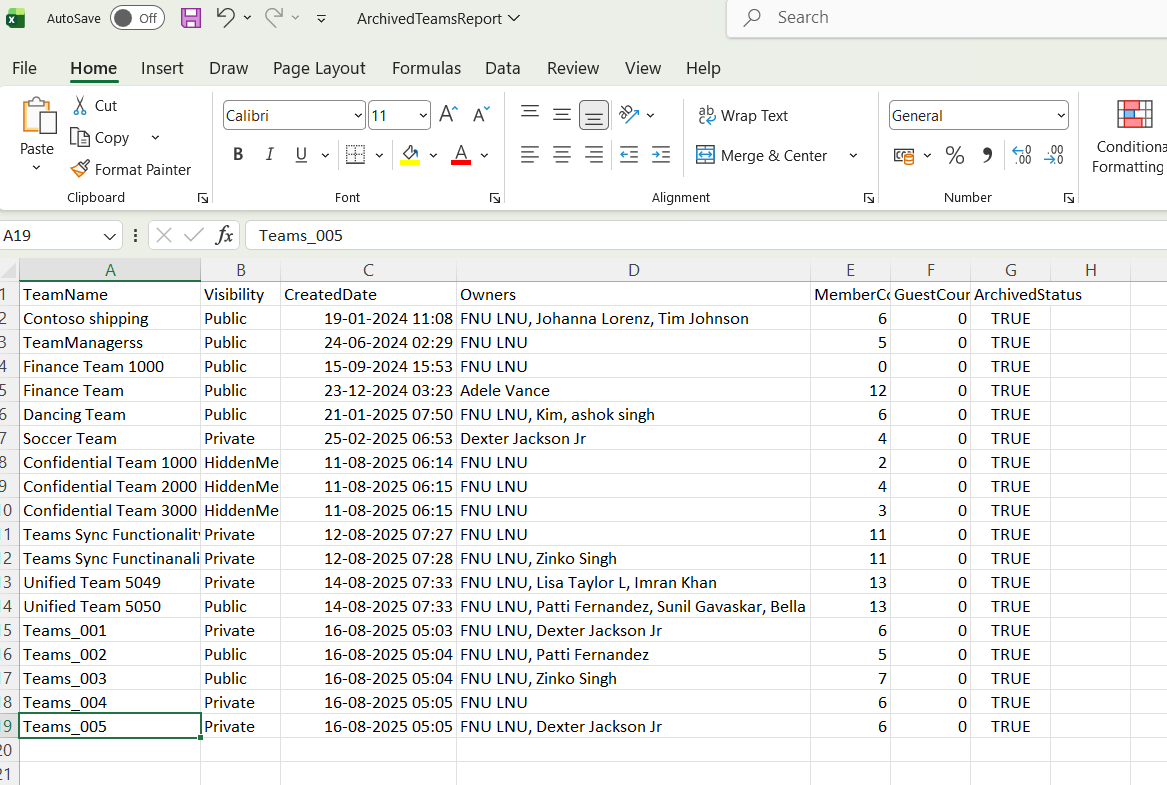
This Graph PowerShell automation script helps administrators generate and email a detailed archived Microsoft Teams report that includes:
- Archived Team Name
- Team Owners
- Member Count
- Guest User Count
- Team Visibility
- Archived Status
- Creation Date
The report is exported to CSV and automatically emailed to administrators, making it ideal for governance reviews, compliance audits, and lifecycle management.
🚀 Community Edition Released!
Try the M365Corner Microsoft 365 Reporting Tool — your DIY pack with 20+ out-of-the-box M365 reports for Users, Groups, and Teams.
Prerequisites
Install the Microsoft Graph PowerShell module if it is not already installed:
Install-Module Microsoft.Graph -Scope CurrentUser
Connect to Microsoft Graph with the required permissions:

Connect-MgGraph -Scopes `
"Group.Read.All",
"User.Read.All",
"Mail.Send"
Complete Script to Automate Archived Microsoft Teams Reporting
# Connect to Microsoft Graph
Connect-MgGraph -Scopes `
"Group.Read.All",
"User.Read.All",
"Mail.Send"

# Output CSV path
$CsvPath = "C:\Reports\ArchivedTeamsReport.csv"

# Email settings
$Sender = "admin@contoso.com"
$Recipient = "securityteam@contoso.com"

# Get all Microsoft Teams-enabled groups
$Teams = Get-MgGroup -Filter "resourceProvisioningOptions/Any(x:x eq 'Team')" -All

$Report = @()

foreach ($Team in $Teams) {

    try {

        # Retrieve Team details
        $TeamDetails = Get-MgTeam -TeamId $Team.Id -ErrorAction Stop

        # Process only archived Teams
        if ($TeamDetails.IsArchived -eq $true) {

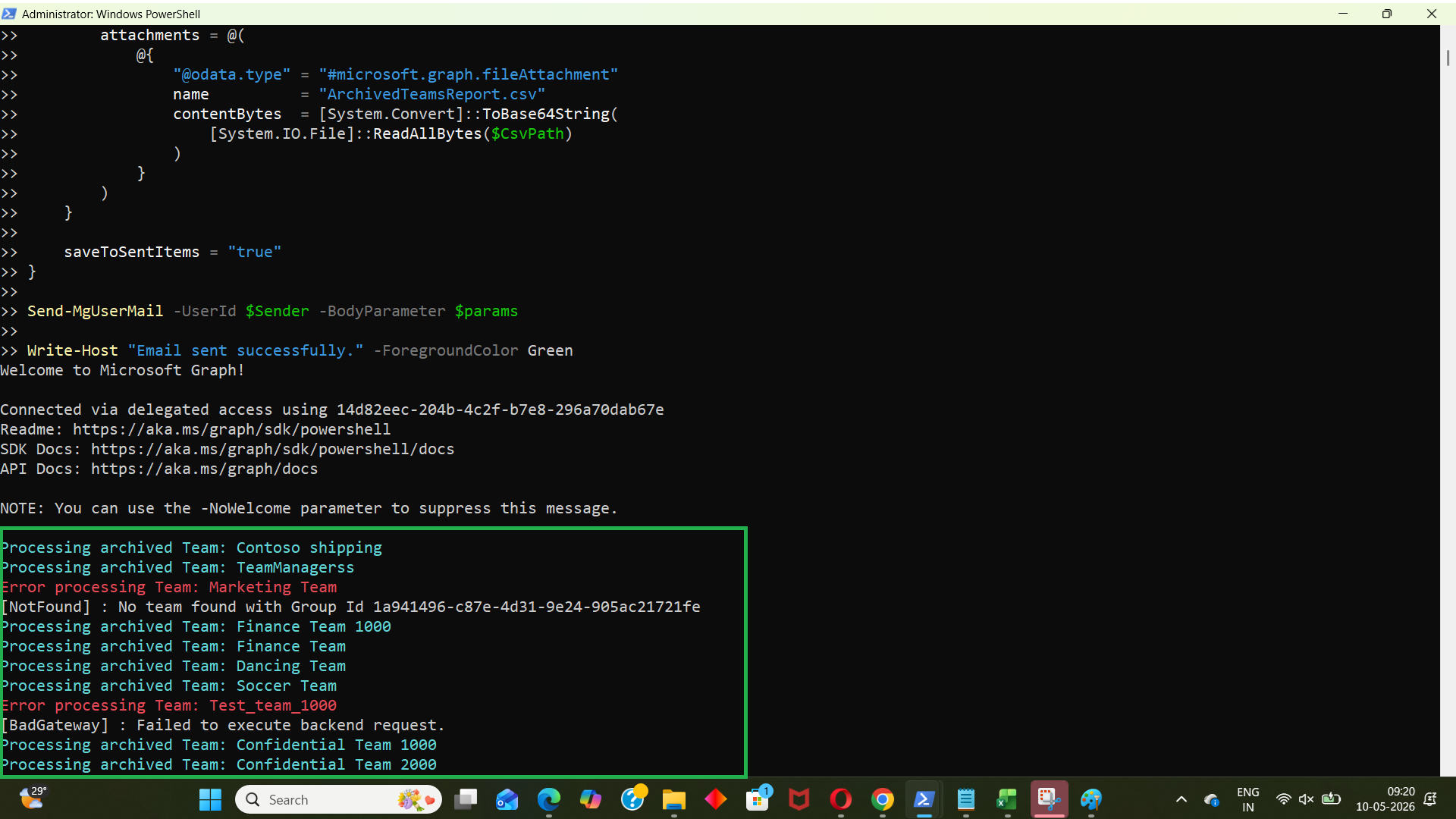
            Write-Host "Processing archived Team: $($Team.DisplayName)" -ForegroundColor Cyan

            # Get Owners
            $Owners = Get-MgGroupOwner -GroupId $Team.Id -All

            $OwnerNames = ($Owners | ForEach-Object {
                $_.AdditionalProperties.displayName
            }) -join ", "

            # Get Members
            $Members = Get-MgGroupMember -GroupId $Team.Id -All

            $MemberCount = $Members.Count

            # Count Guest Users
            $GuestCount = (
                $Members | Where-Object {
                    $_.AdditionalProperties.userType -eq "Guest"
                }
            ).Count

            # Create report object
            $Report += [PSCustomObject]@{
                TeamName       = $Team.DisplayName
                Visibility     = $Team.Visibility
                CreatedDate    = $Team.CreatedDateTime
                Owners         = $OwnerNames
                MemberCount    = $MemberCount
                GuestCount     = $GuestCount
                ArchivedStatus = $TeamDetails.IsArchived
            }
        }
    }

    catch {
        Write-Host "Error processing Team: $($Team.DisplayName)" -ForegroundColor Red
        Write-Host $_.Exception.Message
    }
}

# Export report
$Report | Export-Csv -Path $CsvPath -NoTypeInformation -Encoding UTF8

Write-Host "Archived Teams report exported successfully." -ForegroundColor Green

# Create HTML email table preview
$TopTeams = $Report | Select-Object -First 10

$HtmlTable = $TopTeams | ConvertTo-Html -Fragment

$EmailBody = @"
<html>
<body>

<h2>Archived Microsoft Teams Report</h2>

<p>Please find attached the archived Microsoft Teams report.</p>

<p>Below is a preview of the first 10 archived Teams:</p>

$HtmlTable

</body>
</html>
"@

# Send email with attachment
$params = @{
    message = @{
        subject = "Archived Microsoft Teams Governance Report"

        body = @{
            contentType = "HTML"
            content = $EmailBody
        }

        toRecipients = @(
            @{
                emailAddress = @{
                    address = $Recipient
                }
            }
        )

        attachments = @(
            @{
                "@odata.type" = "#microsoft.graph.fileAttachment"
                name          = "ArchivedTeamsReport.csv"
                contentBytes  = [System.Convert]::ToBase64String(
                    [System.IO.File]::ReadAllBytes($CsvPath)
                )
            }
        )
    }

    saveToSentItems = "true"
}

Send-MgUserMail -UserId $Sender -BodyParameter $params

Write-Host "Email sent successfully." -ForegroundColor Green
How the Script Works
- Connects to Microsoft Graph
- Group.Read.All
- User.Read.All
- Mail.Send
- Retrieve Teams
- Read group members and owners
- Send email reports
- Retrieves All Microsoft Teams
- Identifies Archived Teams
- Retrieves Owners and Members
- Team owners
- Total members
- Guest users
- Orphaned Teams
- Large inactive Teams
- Archived Teams still containing external collaborators
- Exports Results to CSV
- Share with auditors
- Import into Excel
- Maintain governance records
- Emails the Report Automatically
- Embeds a preview table directly in the email
- Attaches the full CSV report
- Sends the report automatically using Graph PowerShell
The script connects using:
These permissions allow the script to:
The following command retrieves only Teams-enabled Microsoft 365 groups:
Get-MgGroup -Filter "resourceProvisioningOptions/Any(x:x eq 'Team')"Each Team is checked using: Get-MgTeam. Only Teams where: IsArchived = True are processed further.
The script retrieves:
This helps administrators identify:
The report is exported using:
Export-Csv
This makes it easy to:
The script:
This makes the solution ideal for scheduled reporting.
Why Archived Teams Should Be Reviewed Regularly
Archived Teams are often overlooked because they are no longer actively used. However, they may still contain:
- Guest accounts
- Sensitive files
- Confidential conversations
- Legacy project information
Regular reviews help organizations:
- Strengthen governance
- Improve compliance visibility
- Reduce unnecessary external access
- Maintain lifecycle management standards
Real-World Use Cases
- Quarterly Governance Audits
- Guest User Reviews
- Lifecycle Management
- Retain
- Restore
- Delete
- Merger and Acquisition Cleanup
- Scheduling the Script
- Windows Task Scheduler
- Azure Automation
- GitHub Actions
- Scheduled PowerShell Jobs
Generate recurring archived Teams reports for security and compliance teams.
Identify archived Teams that still contain external users.
Review older archived Teams before deciding whether to:
During tenant consolidation projects, archived Teams can be reviewed before migration or removal.
You can automate this script using:
This allows administrators to receive recurring archived Teams governance reports automatically.
Possible Errors and Solutions
| Error | Cause | Solution |
|---|---|---|
| Insufficient privileges to complete the operation | The required Microsoft Graph permissions were not granted. | Reconnect using: Connect-MgGraph -Scopes ` "Group.Read.All", "User.Read.All", "Mail.Send" and ensure admin consent is granted. |
| Resource not found | The Team may have been deleted or partially provisioned. | Add proper try/catch handling as included in the script. |
| Access Denied | The account lacks permission to send emails. | Ensure the account has mailbox access and Mail.Send permission. |
How This Differs from Deleted Teams
Archived Teams:
- Remain accessible in read-only mode
- Retain files and conversations
- Can still contain guest users
- Can be restored later
Deleted Teams:
- Are removed permanently after retention periods expire
- Become inaccessible to users
Because archived Teams remain present in the tenant, regular governance reviews are strongly recommended.
Conclusion
Archived Microsoft Teams can quietly accumulate over time, creating governance blind spots within Microsoft 365 environments. By automating archived Teams reporting with Graph PowerShell, administrators can gain visibility into inactive Teams, monitor guest access, review ownership, and maintain stronger lifecycle governance.
This automation script provides a practical way to:
- Audit archived Teams
- Export governance reports
- Email administrators automatically
- Improve compliance visibility
Regular archived Teams reviews help organizations maintain a cleaner, more secure, and better-governed Microsoft Teams environment.